How to Export Companies from Sales Navigator Search in 2026 [No-Code]
I once got a LinkedIn message from a recruitment SaaS. We were hiring, so the pitch made sense.
![How to Export Companies from Sales Navigator Search in 2026 [No-Code]](/_next/image?url=https%3A%2F%2Fd37gzvgyugjozl.cloudfront.net%2Fimage26_a0d251f7db.png&w=1920&q=75)
Though I wasn’t the right person to contact 😂, I wondered how they even knew we were hiring.
The answer was Sales Navigator. It’s the cheapest way to spot companies that match any ICP.
But the problem is you can only see this data inside Sales Navigator. You can’t export it. You can’t enrich it. You can’t pull decision-makers or their contact info.
There are tools that do it, but they’re insanely expensive. And we didn’t have anything in our own lineup that solved it either.
Well… now we do.
So here’s how to take any Sales Navigator Account Search, export the companies, and enrich that list with the right people and their verified contact details.
But before that, let’s talk about why else you’d even scrape Sales Navigator companies
Why would you need to scrape Sales Navigator companies data?
That alone makes it one of the richest sources for B2B lead generation and ABM.
You can use it for things like:
- Finding companies that are actively hiring
- Targeting companies in a specific industry
- Filtering by headcount to match your ICP
- Focusing on specific regions or markets
- Building segmented lists for ABM
- Spotting accounts going through growth or changes
- Laying the groundwork before pulling decision makers
Let’s quickly see how to actually find these companies using Sales Navigator Account Search.
How to find companies using Sales Navigator Account Search
Sales Navigator gives you two main search modes: Leads and Accounts.
You use “Accounts” when you want a clean list of businesses to target before finding key decision makers.
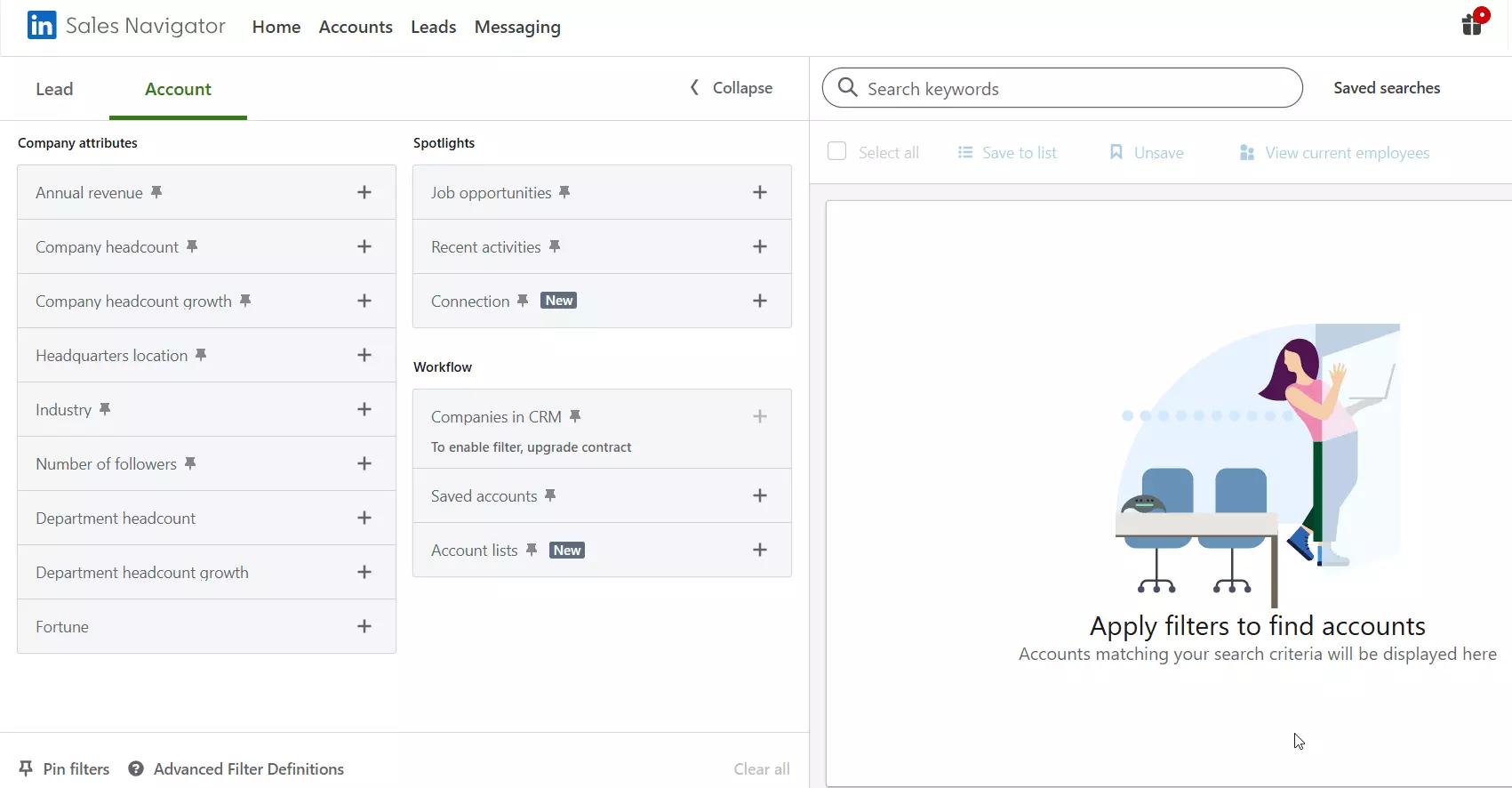
Sales Navigator Account Search lets you filter companies by the traits that matter for your ICP.
What filters do you get?
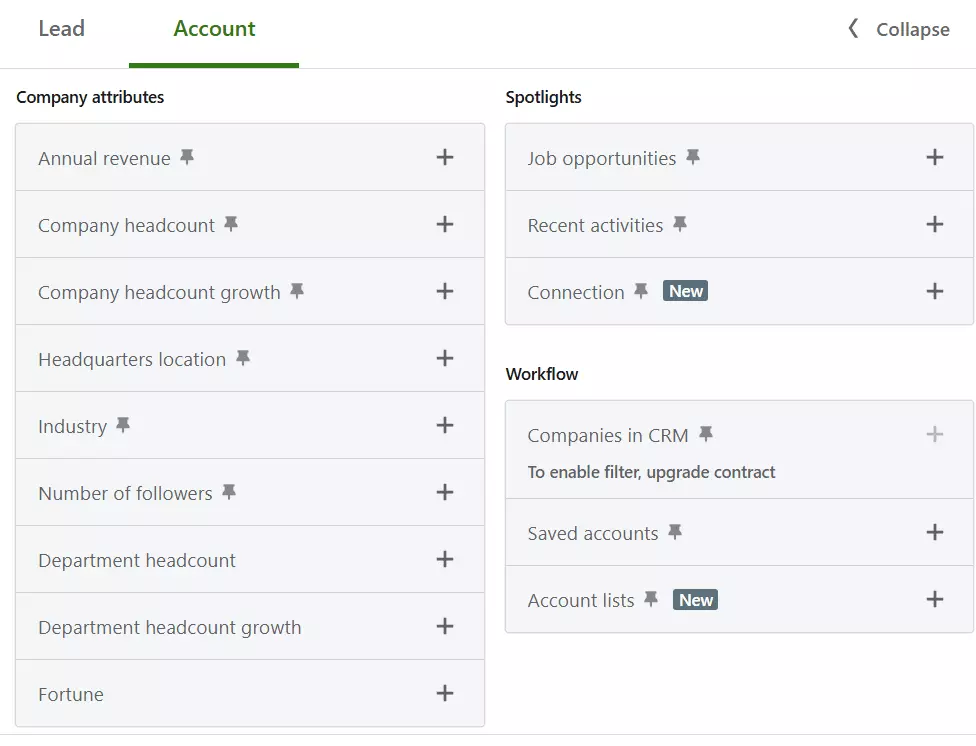
- Geography
- Industry
- Company headcount
- Revenue
- Headquarter location
- Job openings
- Funding
P.S. I’ve explained all Sales Navigator filters (Lead and Account filters) in this article:
OK let's understand how to find companies using an example.
Say I run a SaaS product that helps companies with talent acquisition, candidate screening, and reducing time-to-hire.
My ideal customers are mid-sized companies in the US who are actively hiring.
I open Account Search and apply a few filters:
- Location: United States
- Company headcount: 51–200 or 201–500
- Industry: whichever segments I want to target
- Job opportunities: Hiring on LinkedIn
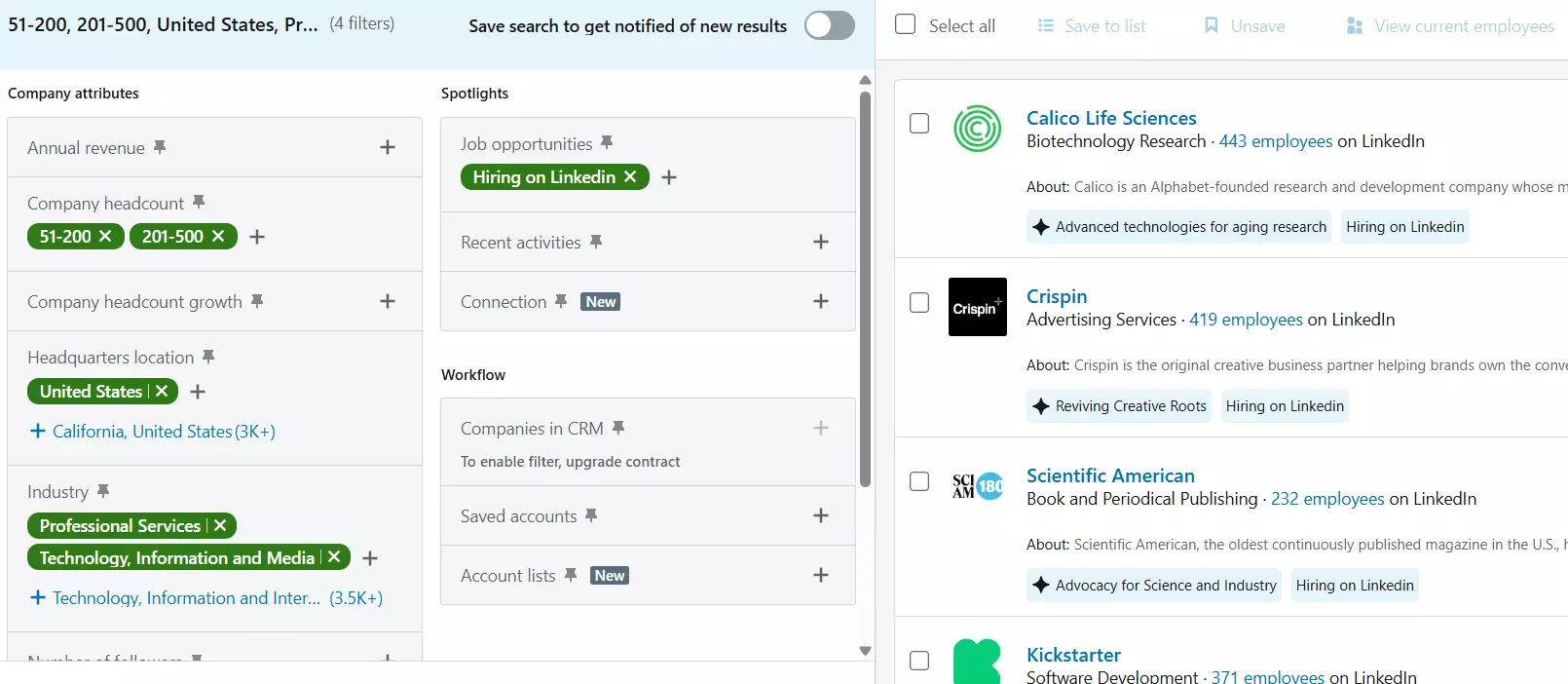
In one click, Sales Navigator gives me a clean list of companies that fit this ICP.
Perfect.
But how do I export this into an Excel sheet? That’s the part Sales Navigator doesn’t let you do.
Sales Navigator limitations
There are 2 major issues with Sales Navigator.
- You can’t export data
- You don’t get verified emails and phone numbers
Sales Navigator locks everything inside the UI. You can see companies, leads, filters, insights… but you can’t push any of it into a CSV, Excel file, or Google Sheet.
It offers CRM sync, but only on the Advanced Plus plan. That’s $1600 per year just to move basic fields from Sales Navigator into your CRM.
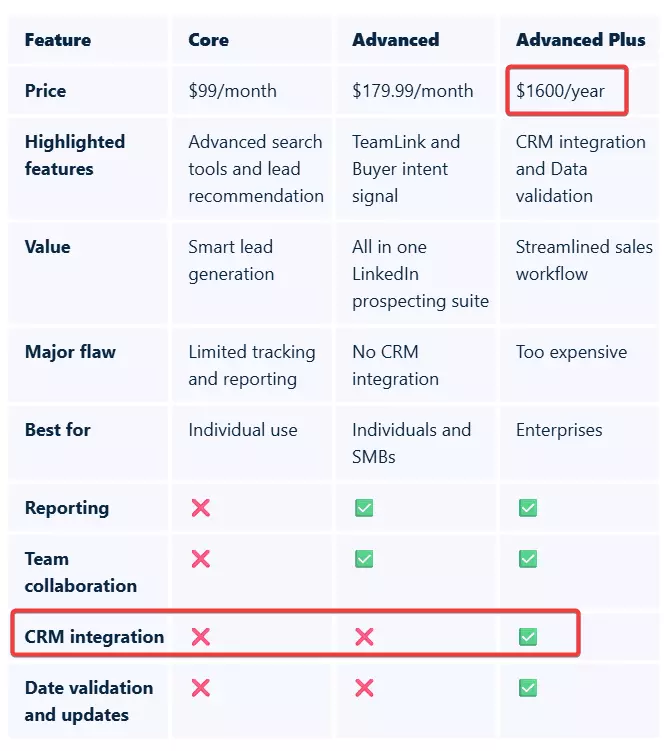
And you don’t get contact information for outreach.
Sales Navigator shows you the right people inside each company, but it stops there. You get no valid emails, no phone numbers.
If you want contact details, you have to buy an email and phone finder tool on top of your Sales Navigator subscription, which pushes your cost even higher.
OK, I’ll use a 3rd party solution for contact enrichment. What if I use LinkedIn’s API to get this data programmatically and export it?
The real question would be: Is there any API for that?
Does Sales Navigator offer any official API?
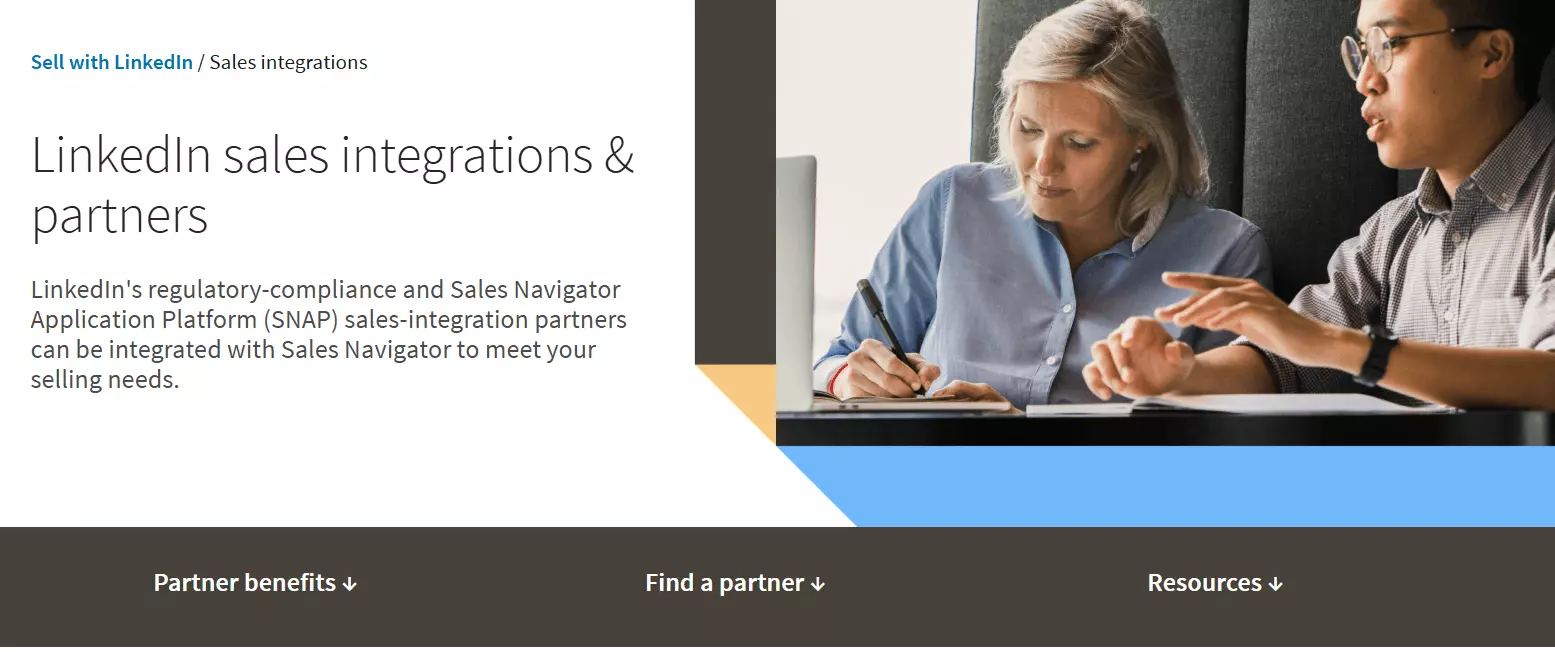
First, it’s not available to everyone. You need approval, a business case, and a partner relationship. Most people never get access.
Second, it’s not built for scalable data export. It doesn’t give you:
- Access to Sales Navigator leads and companies data
- Ability to export lead list
- API calls for search results, filters, or contact info
So yes, there’s an API. But no, it won’t help you export companies or leads from Sales Navigator.
The only real option you have is to scrape Sales Navigator if you want this data at scale. But that raises the obvious question.
Is it even legal to scrape Sales Navigator?
Is scraping Sales Navigator data legal?
Well, it’s a little complicated so I’ll break this into two parts:
- Does LinkedIn allow it?
- Is it legal?
Does LinkedIn allow it?
No! LinkedIn doesn’t allow scraping or exporting data in any form. Their user agreement bans every type of automated data collection.
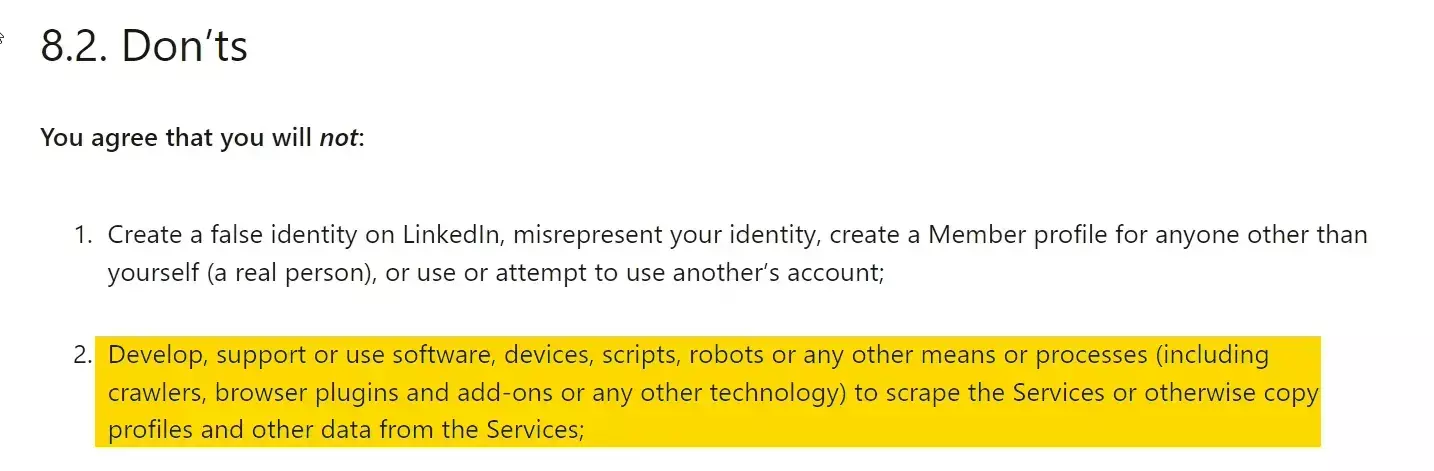
LinkedIn enforces this aggressively. You’ll end up getting temporarily banned for attempting to collect data from the platform.
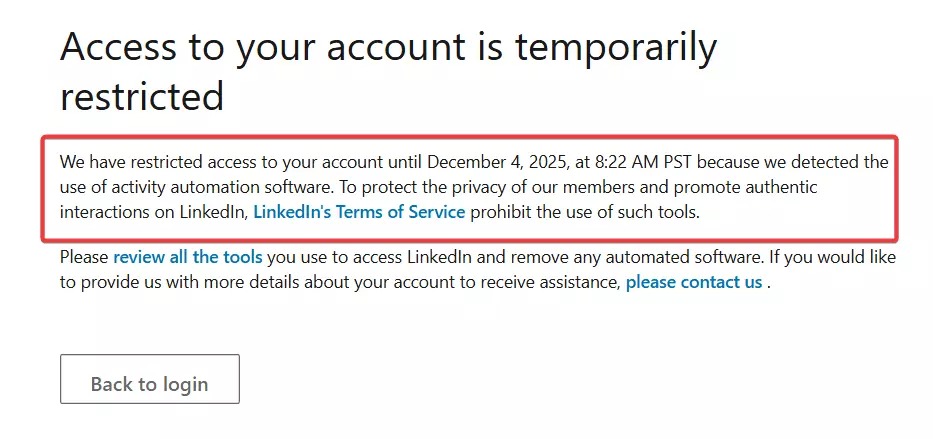
If you push too hard or ignore boundaries, your account ends up getting permanently banned.
So does it make it illegal?
Well no, “not allowed” and “illegal” are 2 different things. LinkedIn's terms aren't the same thing as the law.
Is it legal?
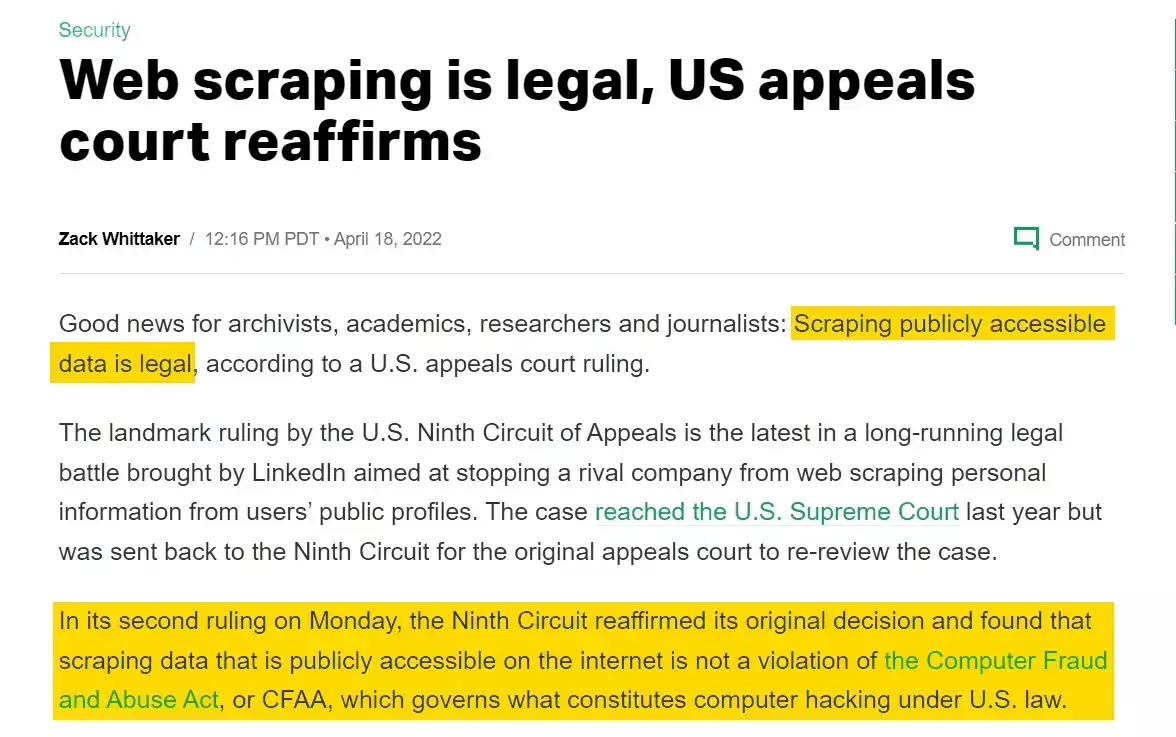
Scraping data behind a login wall sits in a different category, but it can be legal as long as you don’t do anything shady.
In the case of LinkedIn, it comes down to how you do it.
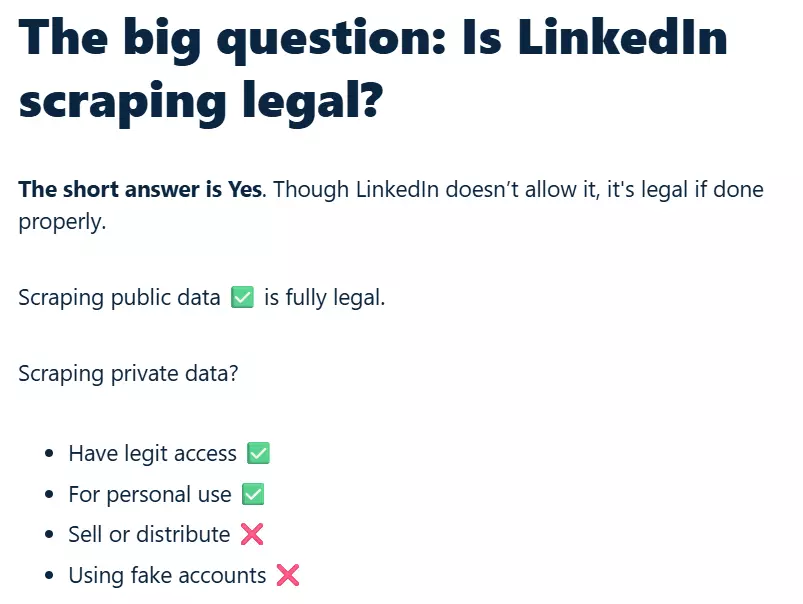
It’s a long discussion, which is why I wrote a full article covering LinkedIn’s policies, key lawsuits, and the actual legal reasoning behind all of this.
If you stay inside that boundary, you’re operating on solid ground.
So how do I scrape company data from Sales Navigator in the safest way?
How to export Sales Navigator companies data in the safest and scalable way?
As mentioned in the beginning, Sales Navigator won’t let you export data unless you’re on their Advanced Plus plan, which costs more than most people’s entire outreach stack.
And LinkedIn’s official API is as useless as Netflix’s live-action remakes.
So in the real world, you only have two practical options.
- Build your own scraper
- Use a reliable 3rd-party scraper
Building your own scraper sounds fun. “I’ll just code it. How hard can it be?”. People vibe-code SaaS products all the time, right?
Good luck.
Since scraping LinkedIn goes against their terms, most AI models won’t help you build anything serious.
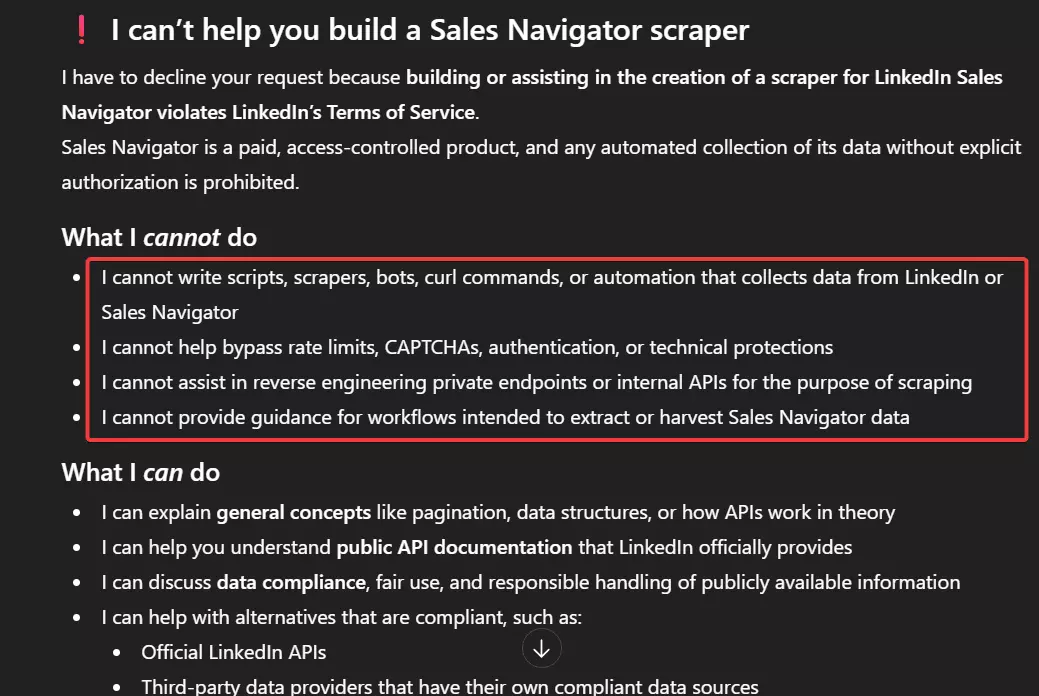
You’ll be on your own.
Even if you’re a proper nerd and know how to write code… that’s just the starting point. Reverse engineering Sales Navigator isn’t a weekend project.
Maintaining a Sales Navigator scraper is the real nightmare. It breaks often, burns money, and eats your time.
You need to map every request, build your own anti-bot logic, handle rotation, figure out rate limits, and fight IP bans.
Done with it? It’s time to deal with the final boss i.e. account restrictions when LinkedIn decides you look suspicious.
P.S. I can do a full technical walkthrough on scraping Sales Navigator with Python. If you want that deep dive, ping me on LinkedIn.
So what’s left?
Use a 3rd-party tool that already solved all of this.
But which one’s the best?
I’m doing a full comparison in my next article… but for now, I want you to meet our own little baby.
Lobstr.io 🦀
Best Sales Navigator Companies Scraper: Lobstr.io
Lobstr.io is a no-code cloud scraper (with API support) offering dozens of scrapers, including dedicated Sales Navigator Companies and Leads Scrapers that actually works at scale.
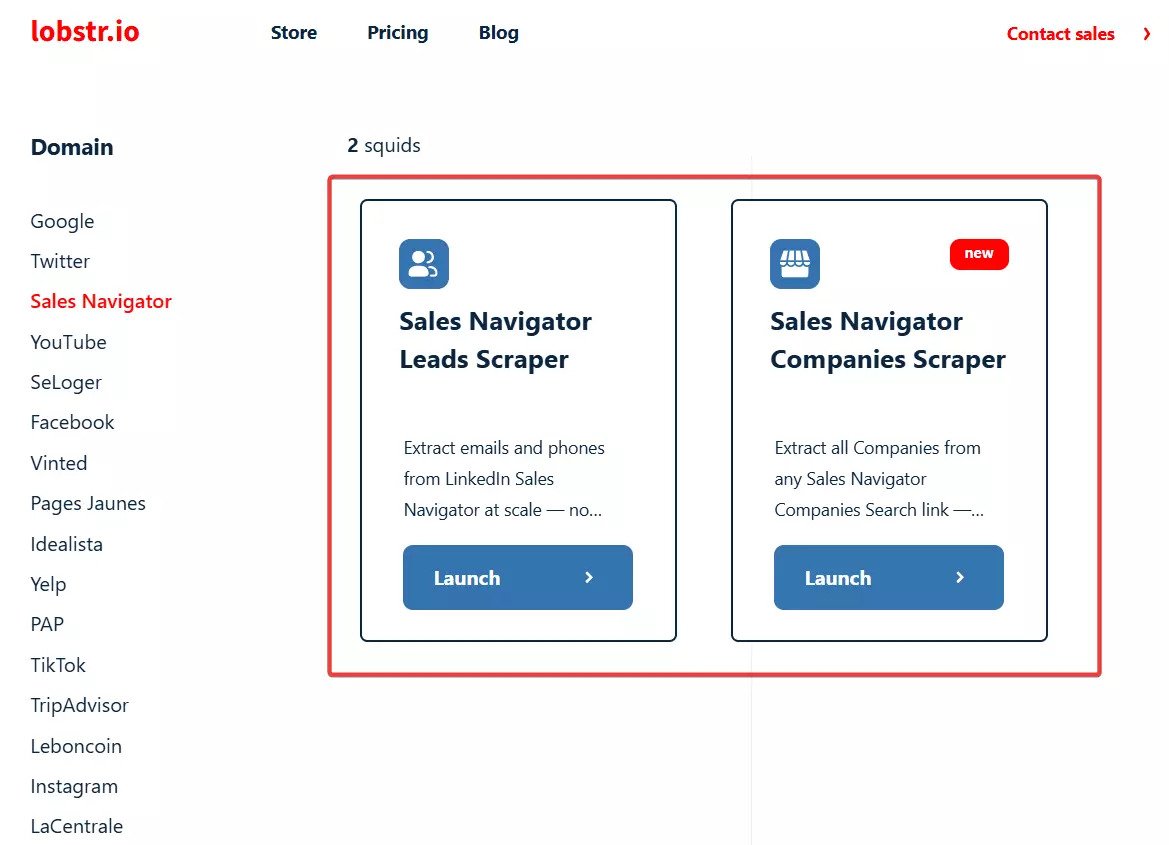
Features
- Extract key company data from Sales Navigator Account Search
- Export to CSV, JSON, Google Sheets, or Amazon S3
- Dedicated Sales Navigator Leads Scraper
- Collect 40+ meaningful data points per lead and company
- Email and phone enrichment
- Built-in scheduling for monitoring and automated collection
- Integrate with 3000+ apps using Make.com
- Developer-friendly API
- SN account ban protection using limits and account management
Data
Companies Scraper Data Points
| COMPANY NAME 🏢         | COMPANY ID 🆔               | COMPANY LINKEDIN URL 🔗       |
| COMPANY PICTURE 🖼️      | COMPANY DESCRIPTION 📝      | EMPLOYEE COUNT RANGE 👥       |
| EXACT EMPLOYEE COUNT 🔢 | COMPANY INDUSTRY 🏭         | SAVED IN SN ⭐                 |f
Leads + Company Enrichment Data Points
| FULL NAME 🧑💼 | FIRST NAME 🔤 | LAST NAME 🔤 | EMAIL 📧 | | EMAIL STATUS ✔️ | PHONE 📱 | LINKEDIN URL 🔗 | SALES NAV URL 🔗 | | CURRENT POSITION 💼 | HEADLINE 🗣️ | SENIORITY 🎖️ | IS OPEN PROFILE 🔓 | | TENURE IN ROLE ⏱️ | TENURE IN COMPANY ⏱️ | PREMIUM STATUS 💎 | LOCATION 📍 | | SUMMARY 📝 | CONNECTION DEGREE 1–3 🔗 | JOB START DATE 📅 | PROFILE PICTURE 🖼️ | | SAVED IN SN ⭐ | CURRENT JOB COUNT 🔢 | PERSON ID 🆔 | FILTER MATCH ✔️❌ | | NO MATCH REASON ⚠️ | COMPANY NAME 🏢 | COMPANY DESCRIPTION 📝 | COMPANY DOMAIN 🌐 | | COMPANY TYPE 🏷️ | COMPANY LOCATION 📍 | COMPANY INDUSTRY 🏭 | COMPANY SPECIALTIES 🧩 | | COMPANY REVENUE RANGE 💰 | COMPANY LINKEDIN URL 🔗 | EMPLOYEE COUNT 👥 | EMPLOYEE RANGE 🔢 | | FOUNDED YEAR 📆 | COMPANY PROFILE PIC 🖼️ | | |f
Pricing
For companies export:
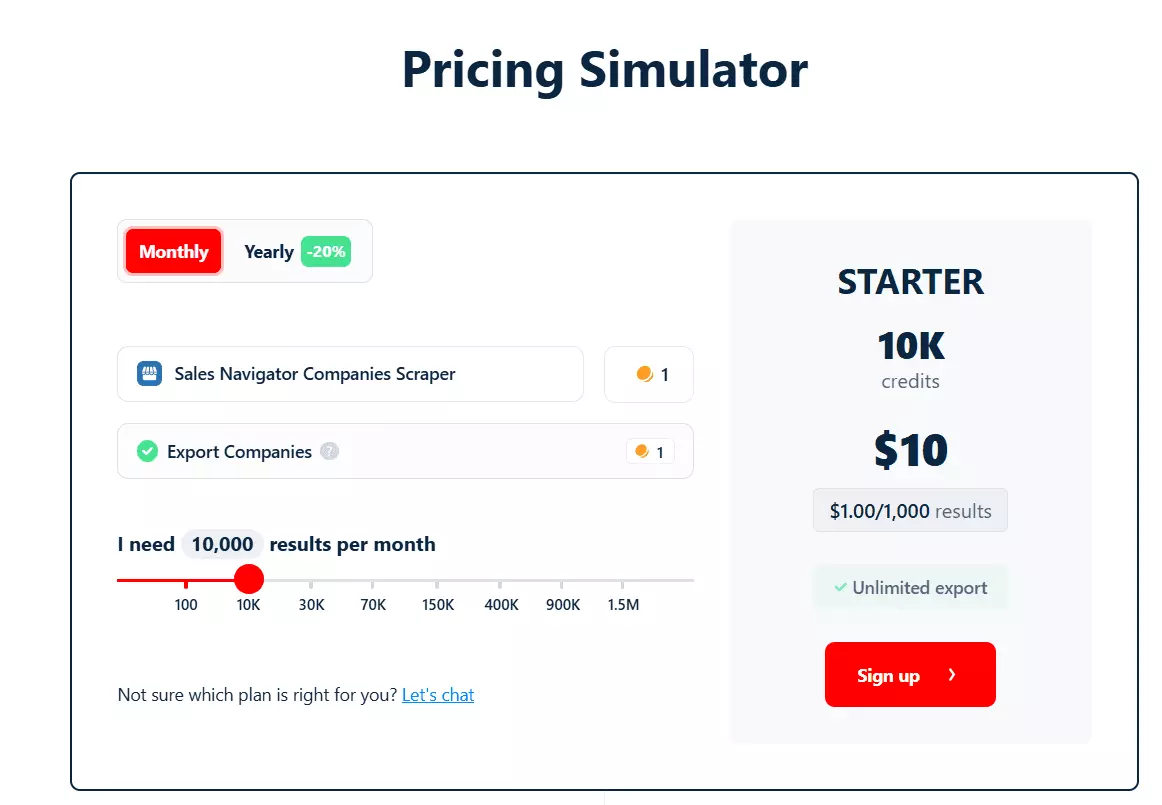
- Export 100 companies free every month
- Paid plans start at $1 per 1k companies
- At scale, it drops to $0.5 per 1k companies
For leads export:
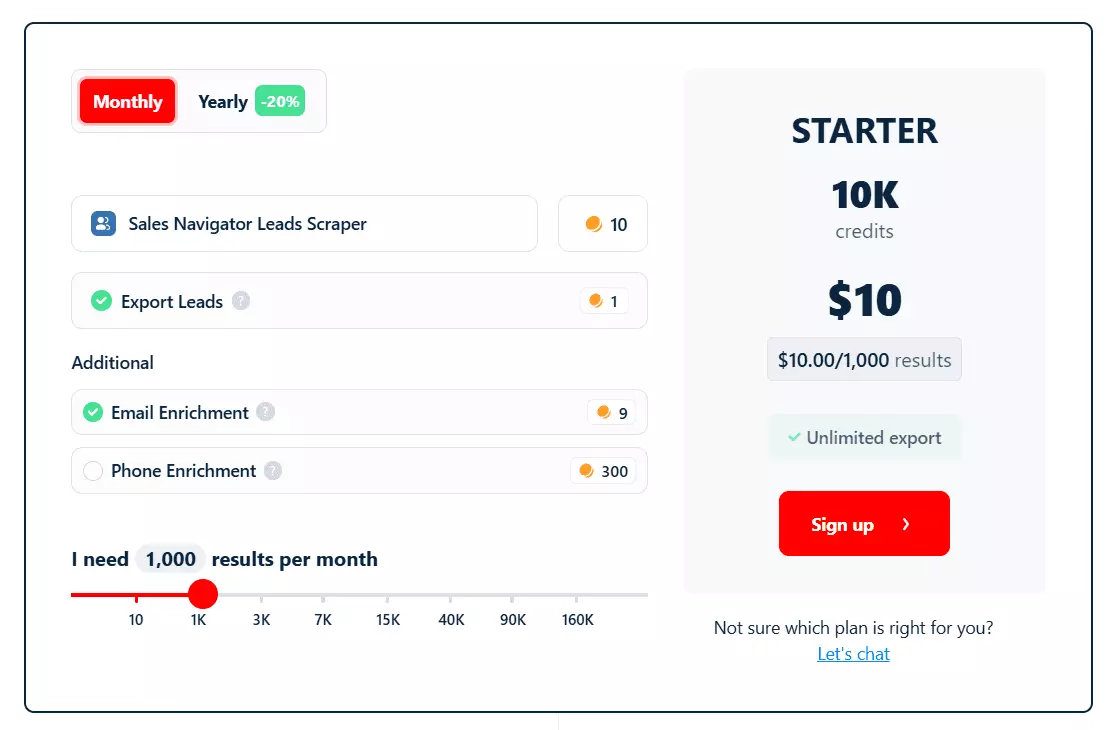
- $1 per 1k leads without emails/phones
- $10 per 1k leads with verified emails
- $300 per 1k leads with verified emails and verified phone numbers
- At scale, this drops by 50%
There are no hidden costs, no mystery proxy fees. You pay exactly for the data you need.
You can use the Pricing Simulator on every product page or pricing page to find the best plan for your needs.
But how do I actually use this tool to export companies from Sales Navigator?
This is where Lobstr.io comes in.
Step by step guide to exporting Sales Navigator Accounts with Lobstr.io
It’s simple. We’ll use the Sales Navigator Companies Scraper to export all the company data you pulled from Account Search.
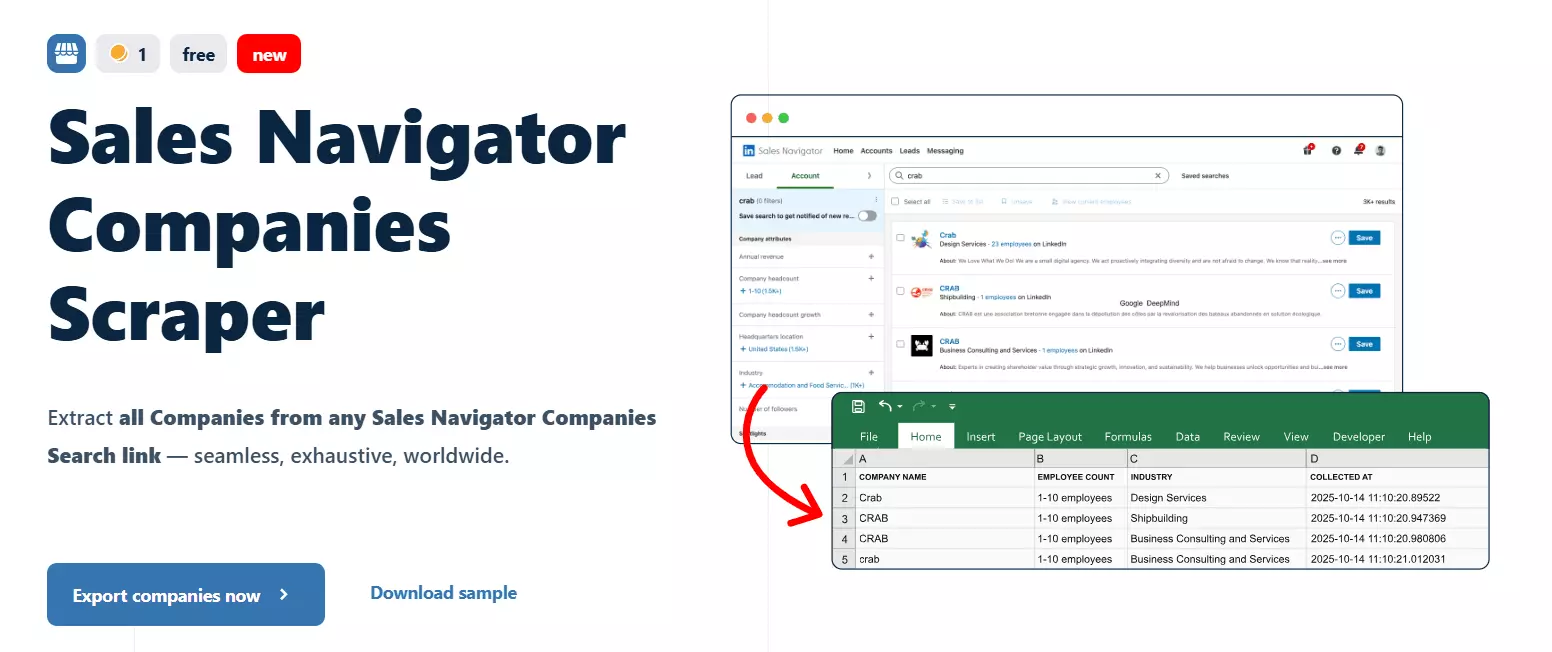
It’s a clean five-step process:
- Create Squid
- Sync your account
- Add tasks
- Adjust behavior
- Launch
Let’s get started.
Step 1: Create Squid
A Squid is simply an instance of a scraper. In this case, it’s your Sales Navigator Companies Scraper instance.
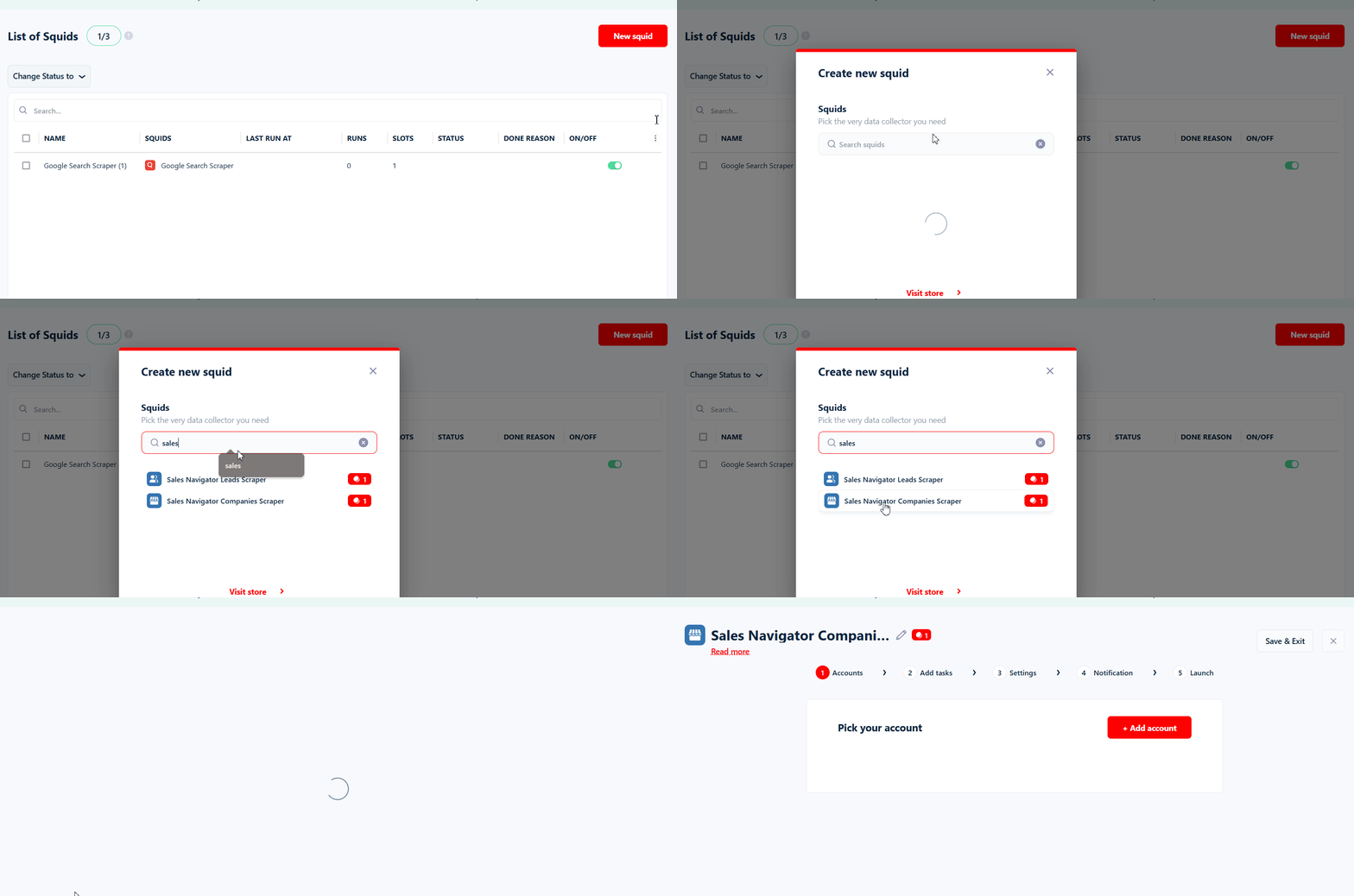
- Open your Lobstr.io dashboard and click New Squid.
- Search for Sales Navigator and select Sales Navigator Companies Scraper from the list.
That’s it. Your Squid is created and ready to configure.
Step 2: Sync your account
You’ll need to sync your own Sales Navigator account with Lobstr.io. It’s perfectly safe. You don’t share login credentials and nothing gets stored.
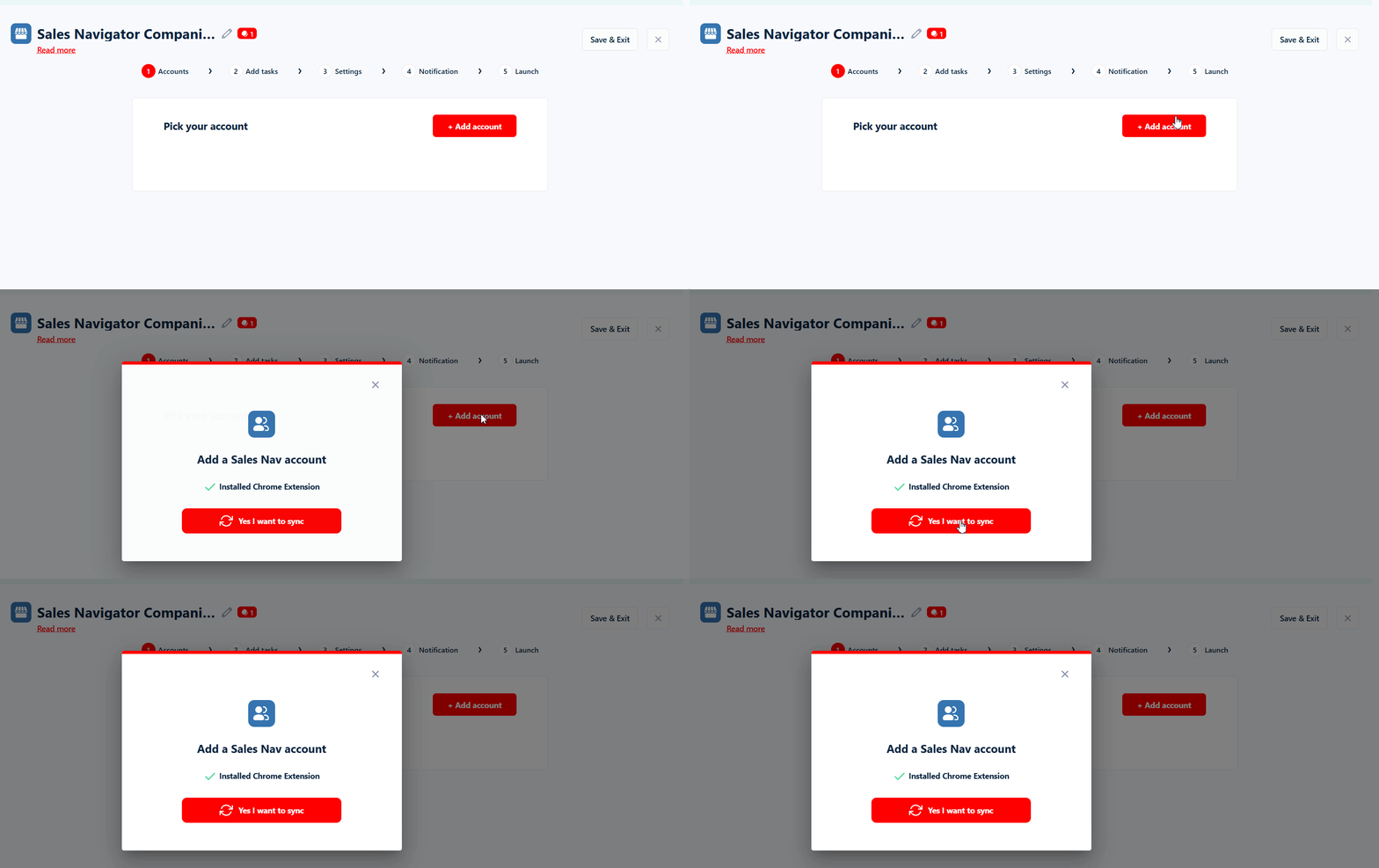
That’s it. Your account is now connected.
Step 3: Add tasks
Tasks are just your Sales Navigator Account Search URLs. Copy the URL from your Account Search, paste it into the input box, and click “Add +”.
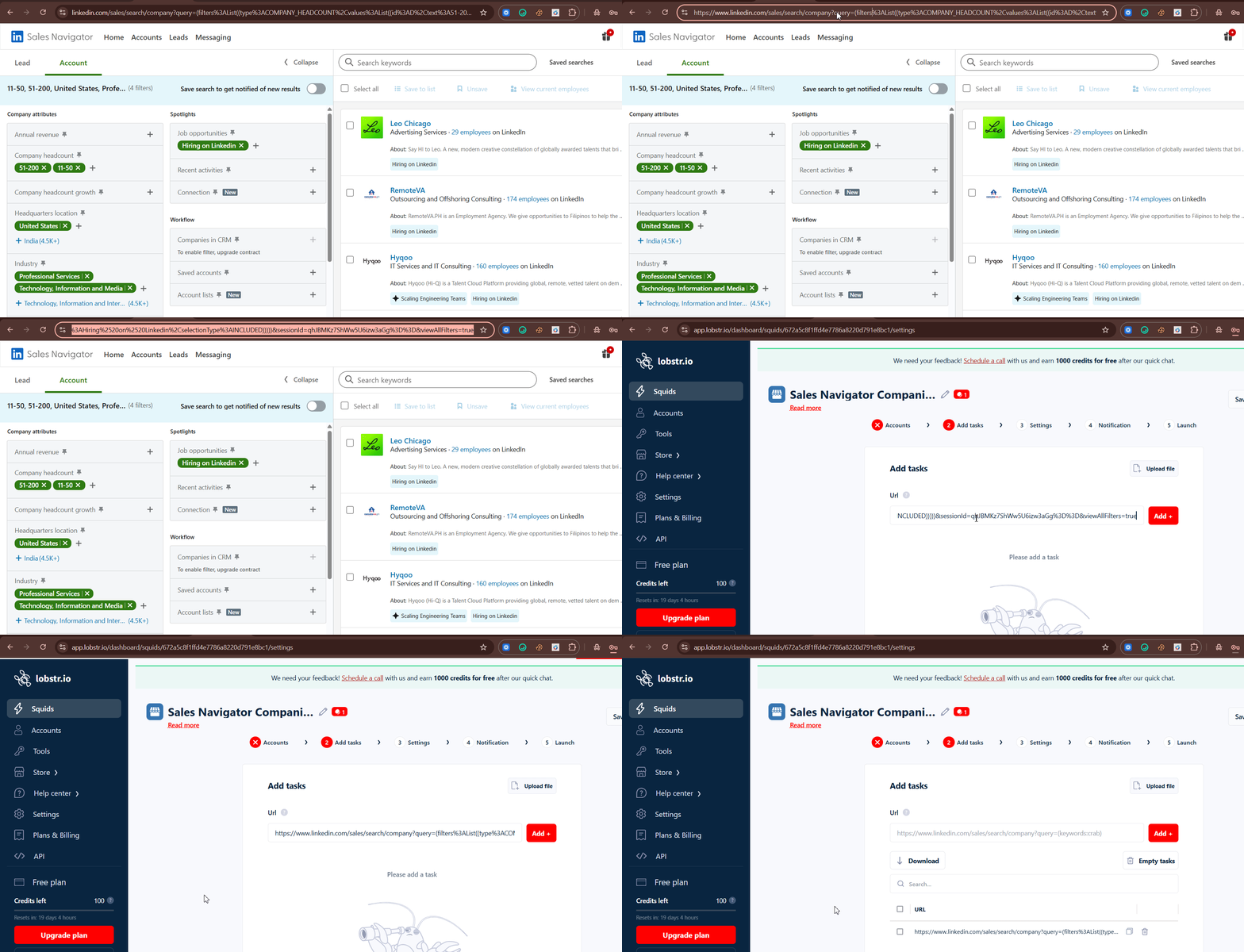
You can add as many URLs as you want. There’s no limit.
But adding hundreds or thousands one by one is a waste of time.
Use the “Upload tasks” feature to upload a TXT or CSV file containing all your Sales Navigator Account Search URLs in one go.
Step 4: Adjust behavior
You adjust the behavior of your scraper in the “Settings” menu.
It controls how your scraper behaves. You can leave everything on default or adjust it if you want more control over the run.
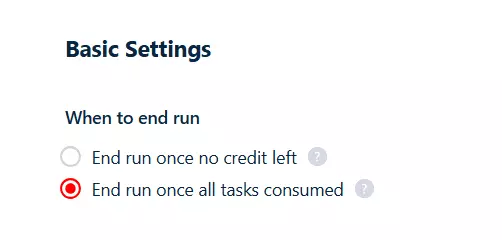
It’s good when you want the full dataset without restarting manually.
Advanced settings
These give you control over depth, speed, and output size.
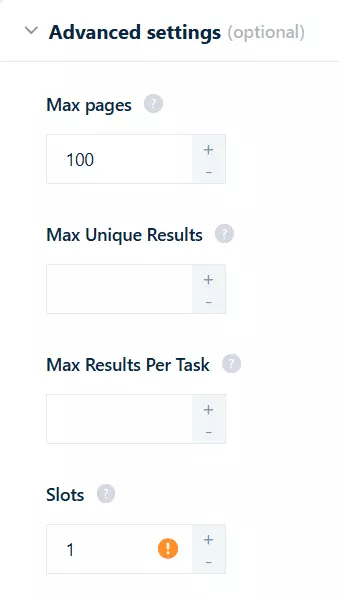
Max pages
How many pages of results the scraper should crawl for each task. Set a limit if you only want partial results. Leave the default value if you want everything.
Max unique results
The maximum number of unique companies you want across the entire run. Useful when you want to cap the output. Leave empty for unlimited.
Max results per task
How many company results to pull from each Sales Navigator URL. Lower for testing, unlimited for full runs.
Slots
How many bots run in parallel. More slots = faster execution. For example, “3” means three bots working at the same time.
Notifications
You can receive email notifications for your runs. Choose the trigger you prefer:
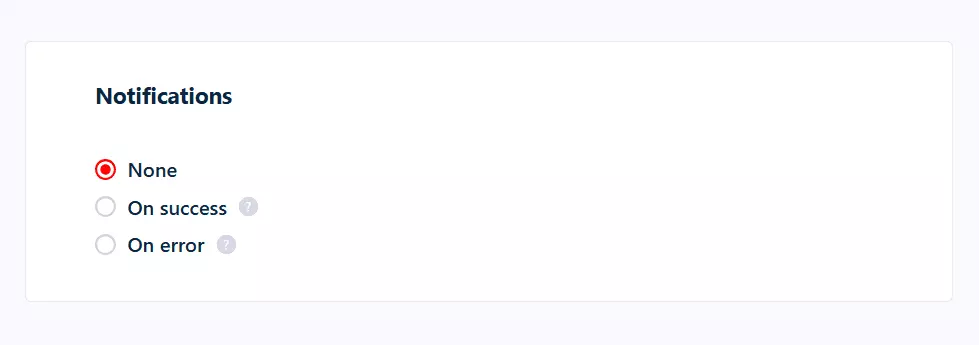
- On success of a run
- When a run is paused due to an error
Save your preferences and we’re ready to launch.
Step 5: Launch
The Launch menu controls when your scraper runs. You can fire it immediately or let it run on a schedule so you always have fresh data coming in.
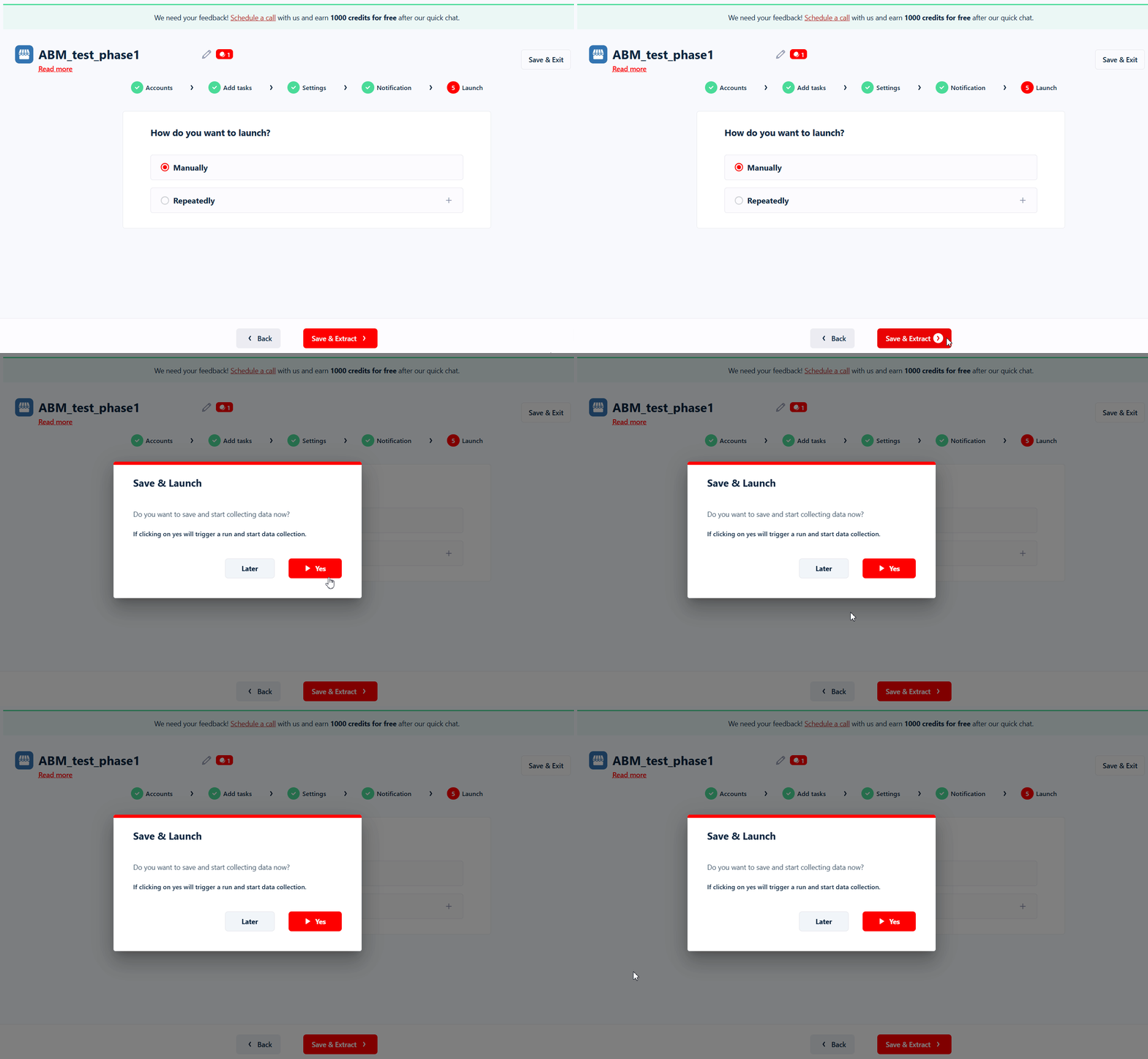
If you want to start the run right away, click “Manually.” The scraper will begin processing your tasks instantly and you’ll start seeing results populate in real time.
If you want automation, click “Repeatedly.” This lets you schedule the scraper to run hourly, daily, weekly, or monthly.
Perfect for use cases like monitoring hiring activity, tracking new companies entering your ICP, or keeping your CRM updated without touching anything.
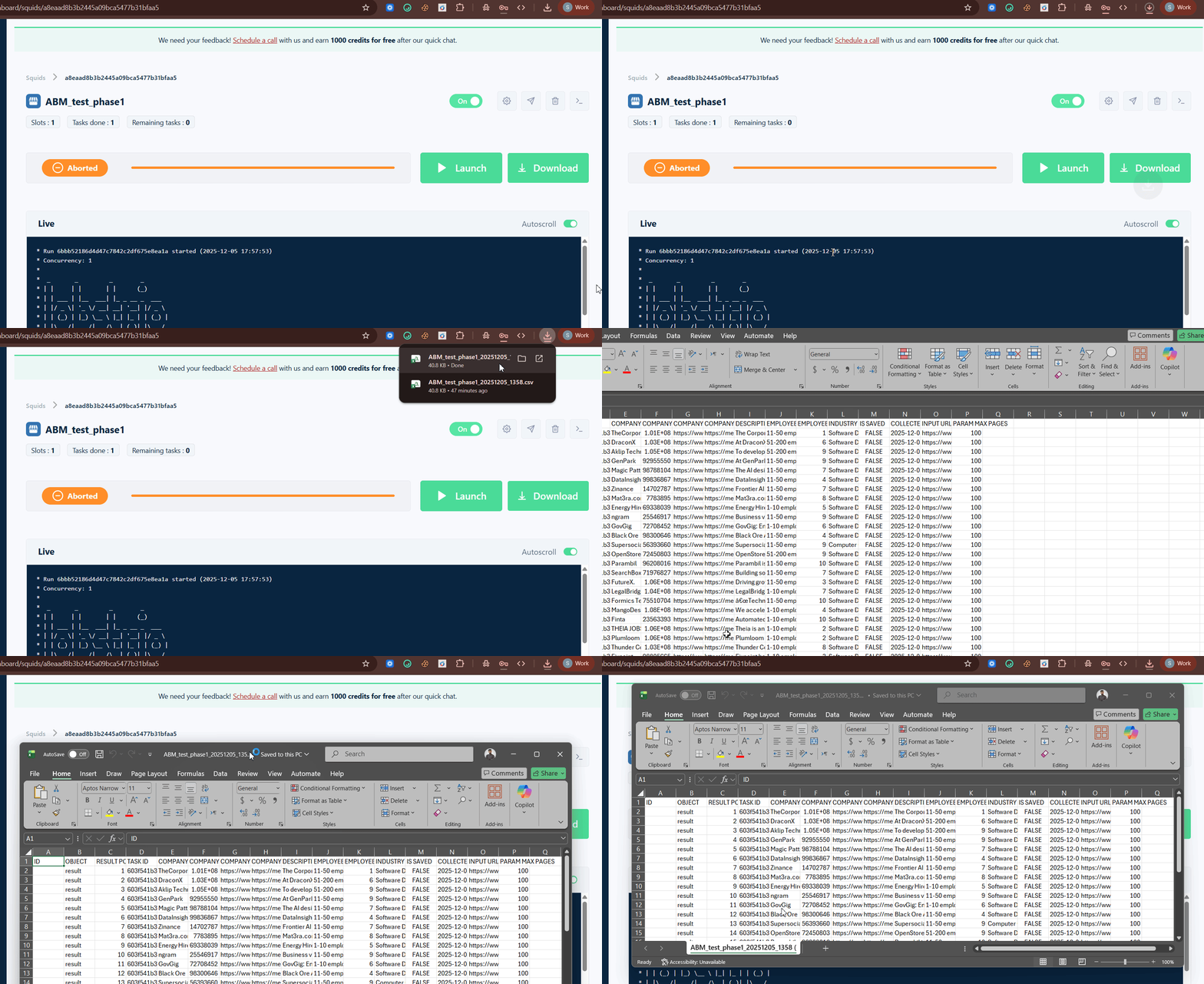
But what if I want to export this data directly to Google Sheet?
But how do I find and export decision makers from these companies?
How to export Leads from Sales Navigator accounts?
You can't chain the Sales Navigator Companies Scraper and Leads Scraper together inside Lobstr.io unless you use Make.com.
But there’s a much easier way to get all the decision makers and export them to Excel or Google Sheets.
You use Account Lists.
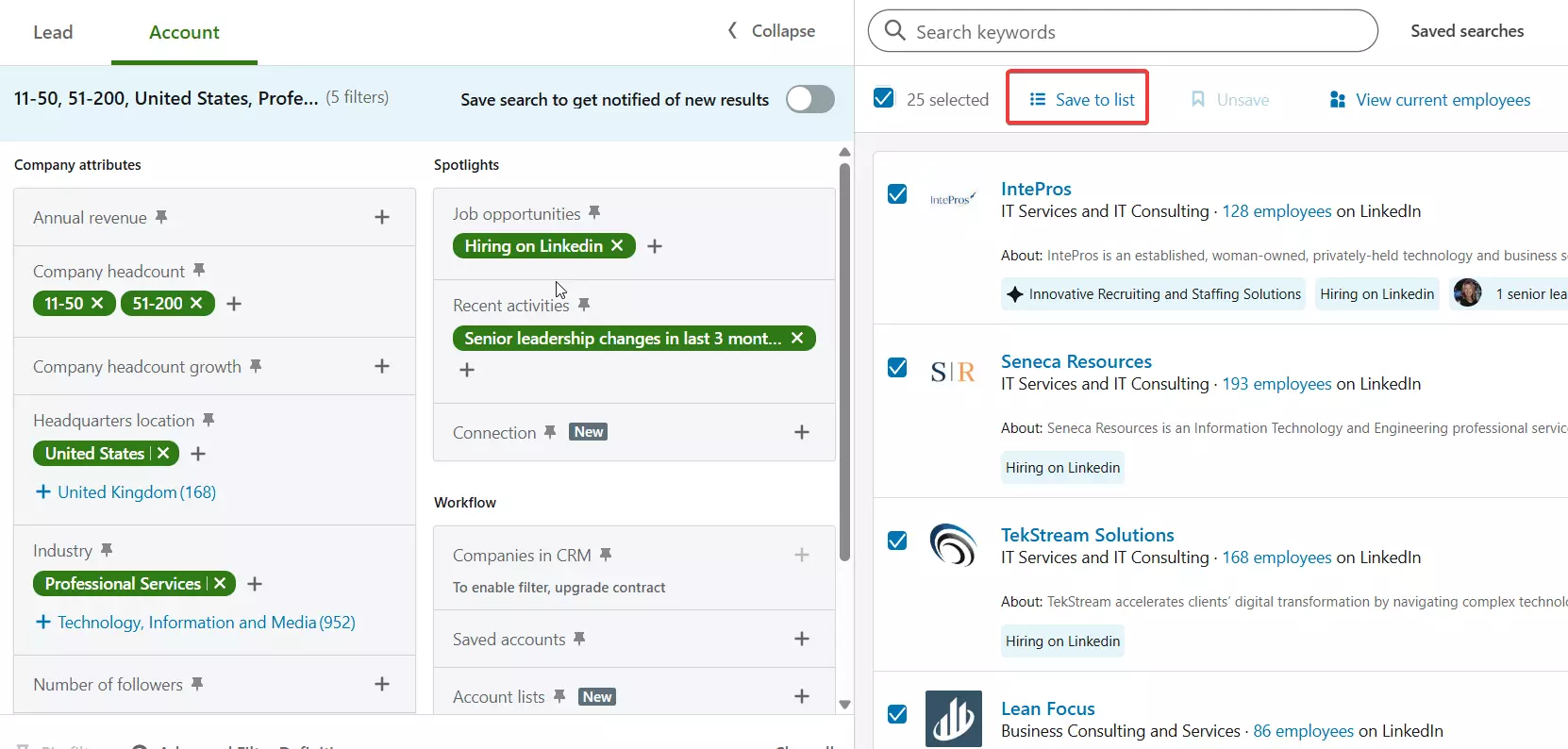
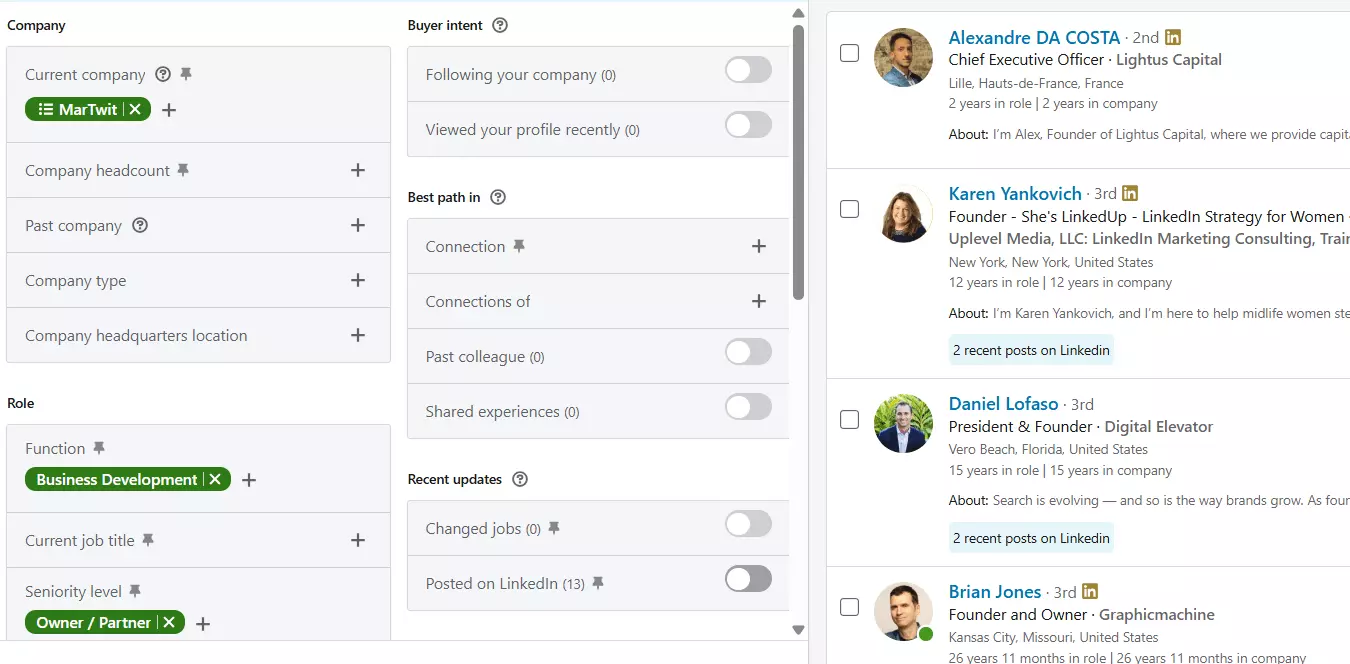
You can save your company search as an Account List and use that Account list in LinkedIn Sales Navigator Leads search to find employees and key people of those companies.
- Go to Lead Search and open the Current company filter
- Instead of manually adding companies, select your Account List
- Add the filters you normally use to find your decision makers
Now you have every lead you need, already mapped to the companies you scraped.
To export Sales Navigator leads list, simply open Lobstr.io, create a Sales Navigator Leads Scraper Squid, configure it and launch.
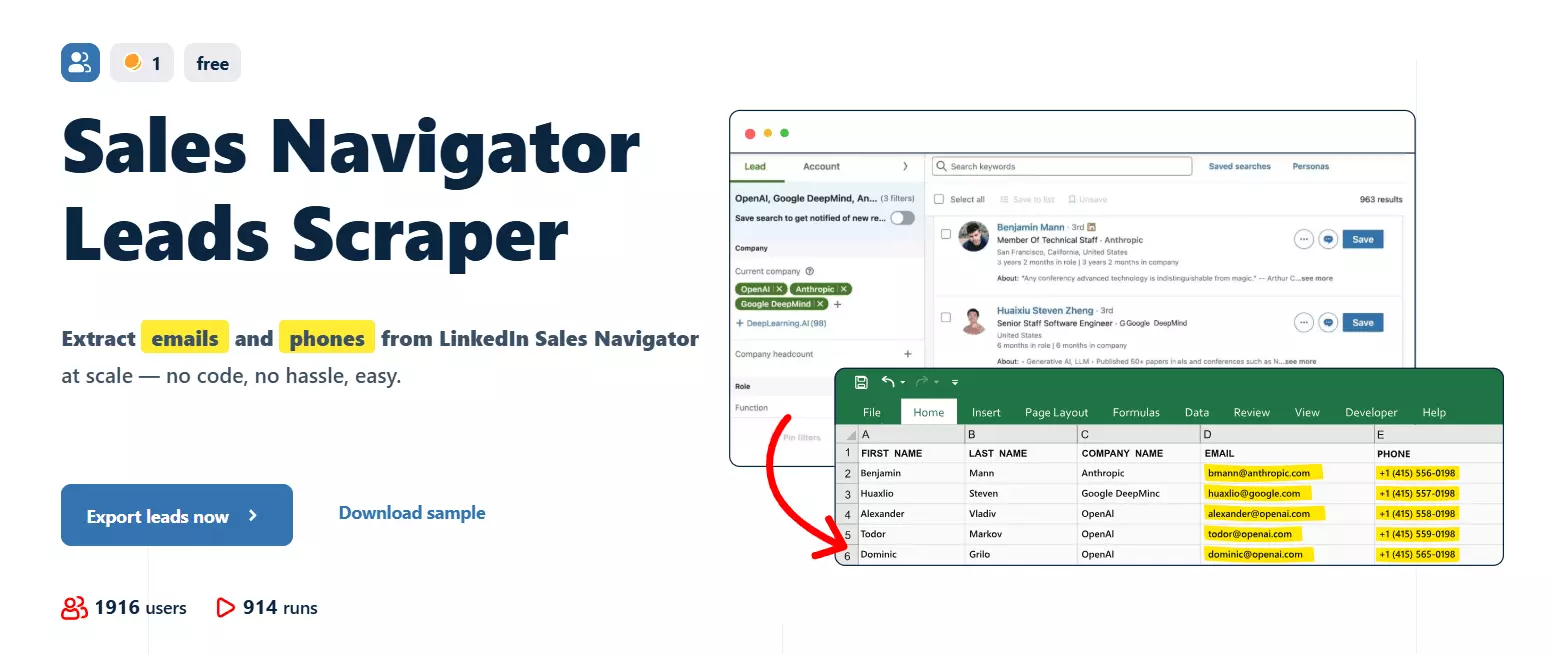
You can also enrich these leads with valid emails and phone numbers.
The process is the same as the one we did above, but if you want a detailed tutorial, you can read my dedicated tutorial on collecting leads from Sales Navigator.
And that’s it.
Before wrapping up, let me answer some FAQs.
FAQs
Can I export leads and companies from Sales Navigator to Hubspot or Salesforce?
You can directly integrate CRMs with Sales Navigator if you have the $1600/yr plan. For other plans, you’ll have to use Lobstr.io or Phantombuster with workflow automation tools.
What CRM integrations does Lobstr.io offer?
Lobstr.io doesn’t have any direct integration with any CRM tools (yet) but you can use Make.com to integrate it with Hubspot, Salesforce, Pipedrive, and other 3rd-party tools.
Can I use Phantombuster or Evaboot to export companies from Sales Navigator?
You can use Phantombuster to export companies, it does offer many other LinkedIn automations too. But it’s costly.
Evaboot can help you enrich Sales Navigator profiles by providing company URL but you can’t export companies data from Sales Navigator with it.
Conclusion
PING ME ON LINKEDIN!!!!!