How to Export LinkedIn Contacts of your 1st-Degree Connections in 2025
Learn how to export your own LinkedIn contacts and the contacts of your connections (1st and 2nd degree) with verified emails easily and safely in 2025.

By Shehriar Awan
Head of Content @ lobstr.io
30 Jul 2025
12 min read
Contents
- Why Export Your LinkedIn Contacts (and Their Contacts Too)
- Is It Legal to Export LinkedIn Data in 2025?
- How to export your LinkedIn contacts from basic account?
- Export LinkedIn connections through Sales Navigator with verified emails
- How to export LinkedIn contacts of your 1st-degree connections?
- FAQs
- Conclusion
Ever wished you could grab all your LinkedIn contacts and your connection’s contacts (and their emails) in one neat file?
LinkedIn does allow you to export your 1st degree connections. And you’ll find lots of tutorials online telling you how to do it.
Collect all Google search results for free
But what about the connections of your connections (aka 2nd-degree contacts)?
Most guides stop there. And when you do find ways to pull the data, it usually comes with missing emails or unverified info.
That’s why, in this article, I’ll cover 2 working methods of exporting your contacts + your connection’s contacts along with verified business emails.
Here’s a quick side-by-side snapshot:
| Method | Data you get | Email coverage |
|---|---|---|
| Native LinkedIn export | Your 1st-degree contacts | Only emails contacts choose to share |
| Sales Navigator Export via Lobstr.io | 1st, 2nd, 3rd degree contacts, group members, 1st and 2nd degree connections of a certain 1st degree contact | Much broader + fully verified via Lobstr.io email discovery |
But why’d you need to export this information?
Why Export Your LinkedIn Contacts (and Their Contacts Too)
Your LinkedIn network is one of your most valuable business assets.
But leaving it locked up on LinkedIn means you’re at the platform’s mercy.
Algorithms change, accounts get restricted, and suddenly your hard-earned professional network is harder to reach.
By exporting your contacts, you can:
- Back up your entire network so you’re never locked out.
- Sync those connections into your CRM and keep them fresh.
- Run warm outreach campaigns to people who already know you.
When you also export the connections of your connections, your reach multiplies overnight.
That means:
- A much bigger pool of potential hires, leads, or partners.
- New warm introductions just one step away.
- More opportunities to grow your business faster.
If connections and degrees are confusing for you, you can read this article to understand them properly:
👉 What Does 1st 2nd 3rd Mean on Linkedin - Complete Guide [2025 Edition]
For recruiters, it’s a talent goldmine. For founders and growth marketers, it’s a massive new pipeline.
But is it even legal?
Is It Legal to Export LinkedIn Data in 2025?
Disclaimer
This content is based on publicly available information and does not constitute legal advice. The opinions expressed are solely those of the author and are not a substitute for legal guidance.
For advice tailored to your specific project, country, or legal needs, please consult with a qualified legal professional.
Short answer: yes, if you do it the right way.
LinkedIn’s own export tool is 100% safe and compliant.
Plus using Sales Navigator and trusted tools like Lobstr.io to export data you can already view is also allowed.
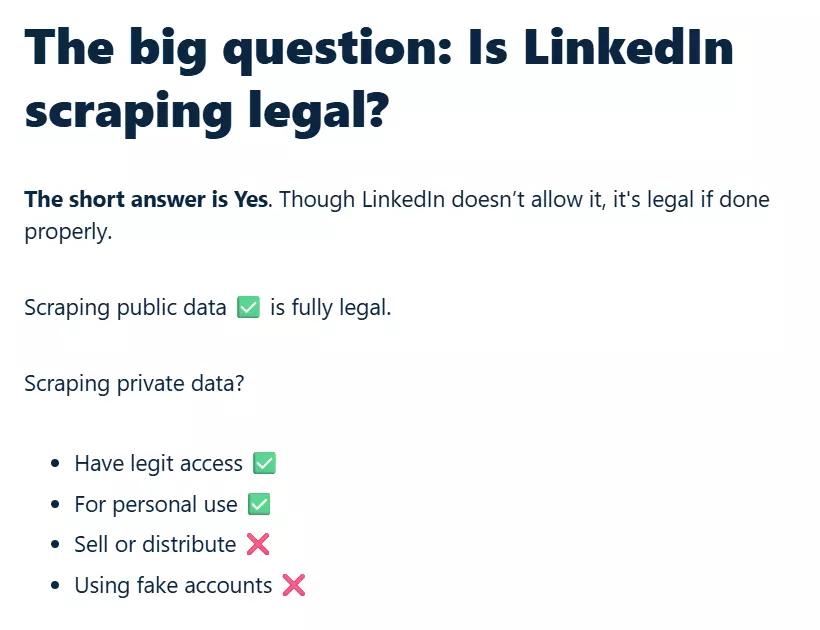
Want the full breakdown? We’ve got a separate deep dive on the legal side you can check out for all the details.
👉 Is LinkedIn Scraping Legal? Key Laws and Best Practices
Now the big question… How to do it?
How to export your LinkedIn contacts from basic account?
If you only need your 1st-degree contacts, LinkedIn’s built-in export is the simplest way.
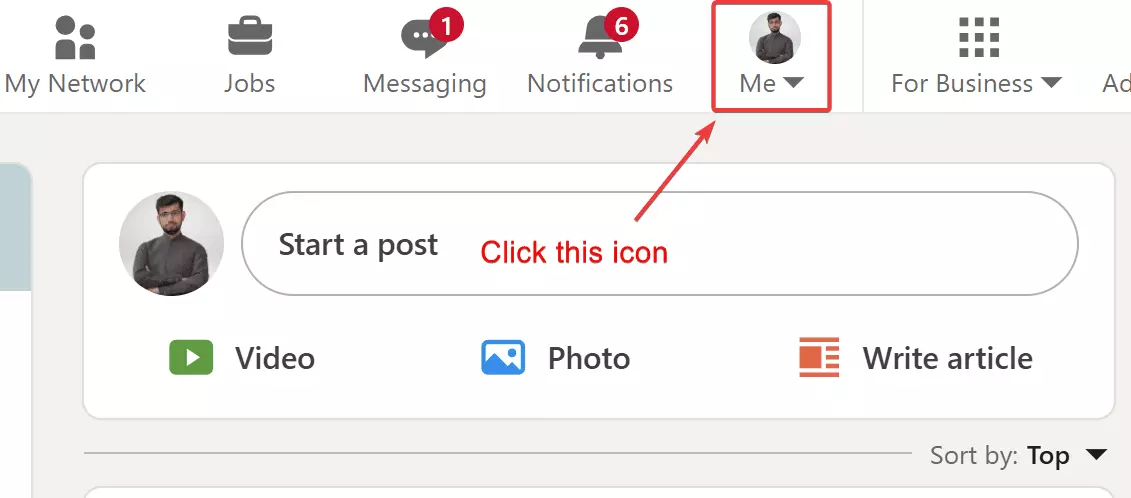
- Click your Me icon at the top of LinkedIn
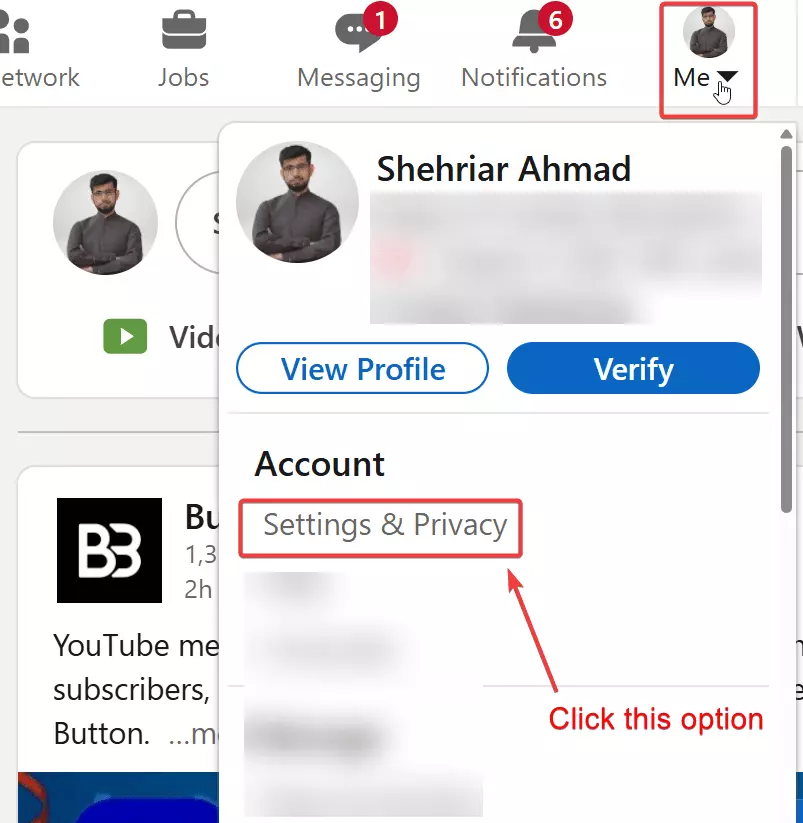
- Go to
Settings & Privacy - Go to
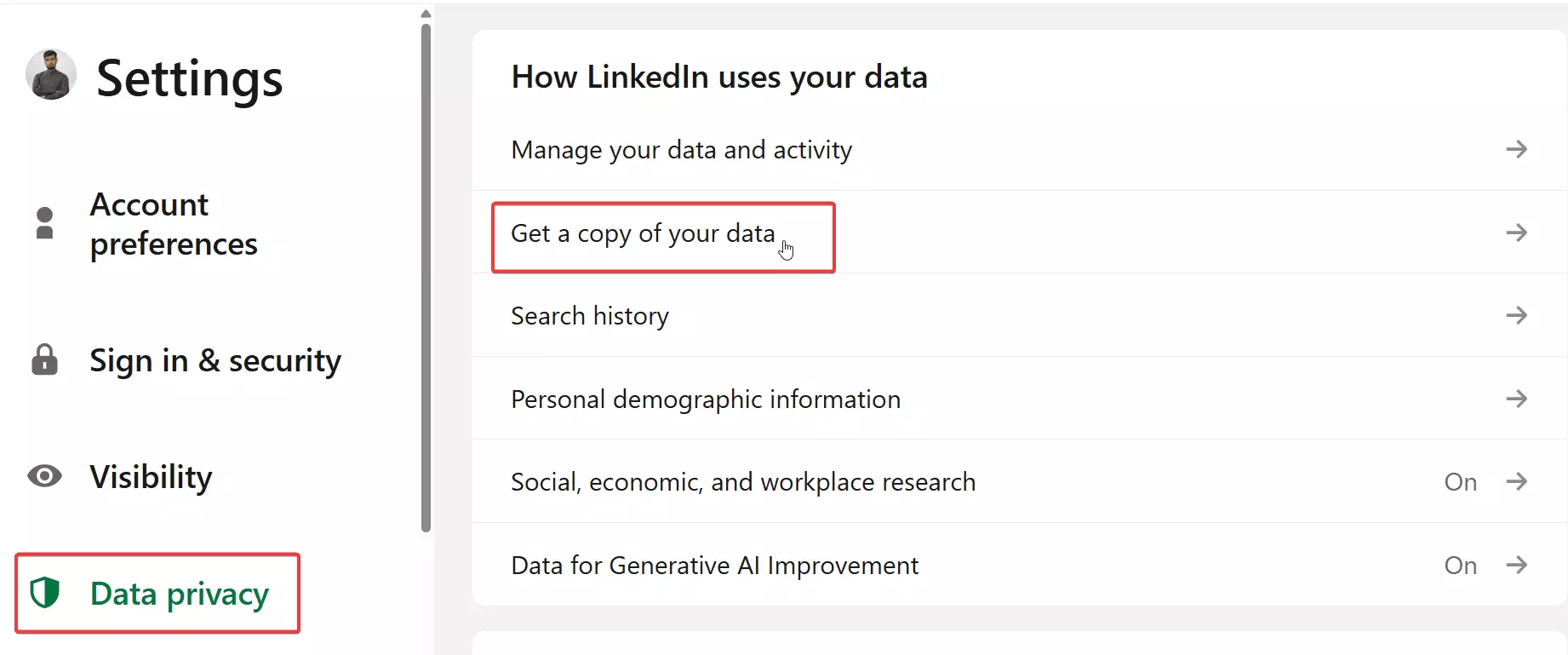
Data privacy - Download your connections data
P.S. you can use the following button to directly go to Download my data page:
⬇️Download your LinkedIn connections list
Step 1: Click your Me icon at the top of LinkedIn
Click the Me icon i.e. the icon with your profile picture in the top right corner of LinkedIn.
Step 2: Choose Settings & Privacy
From the drop-down menu, choose the Settings & Privacy option.
You will receive a download link in your email in the next 24 hours, click it and download the CSV file.
Step 3: Go to Data privacy settings
In Settings & Privacy find Data privacy settings and click it. Now click the Get a copy of your data option to download your data from LinkedIn.
Step 4: Download your connections data
Under Download my data, choose the option that says “Download larger data archive…” to include your connections’ data in the download file.
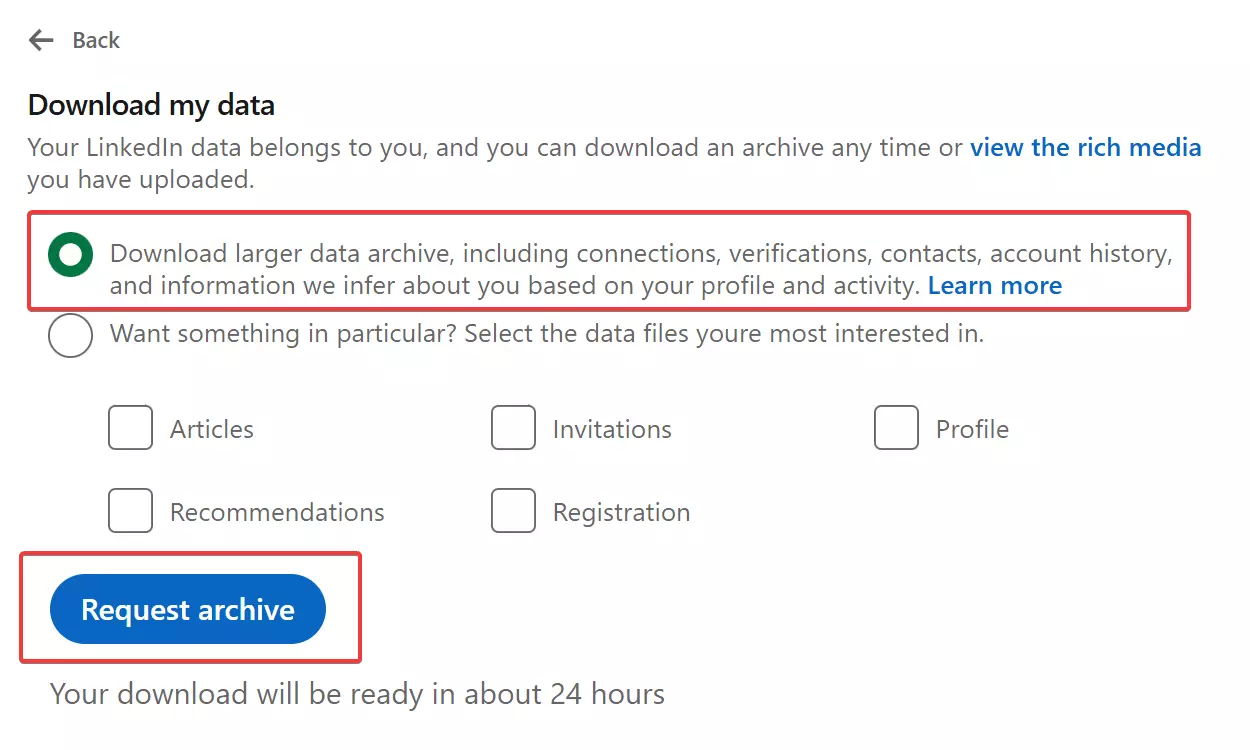
Then simply click the Request archive file. LinkedIn will send you an email with a link to the download archive page containing all the data.
It takes up to 24 hours to get full data using this method.
You will find 7 data points in the CSV file:
- First Name
- Last Name
- Profile URL
- Email Address (if available)
- Current company
- Current position
- Date of Connection
This method only gives you your 1st degree connections, and you’ll only see emails if they were shared publicly. Plus you’ll have to wait for 24 hours.
Before using the list, run the CSV through an email verifier. It’ll filter out invalid or inactive emails and save you headaches later.
👉 10+ Best Email List Cleaning Services [2025 Edition]
P.S. You can also use data enrichment tools and email finder APIs to find the missing emails.
👉 I Tested and Compared the Best Email Finder APIs of 2025
👉 I Tested and Compared Best Data Enrichment Tools of 2025
But what if I want to export all my LinkedIn connections?
Export LinkedIn connections through Sales Navigator with verified emails
Sales Navigator is LinkedIn’s premium prospecting tool.
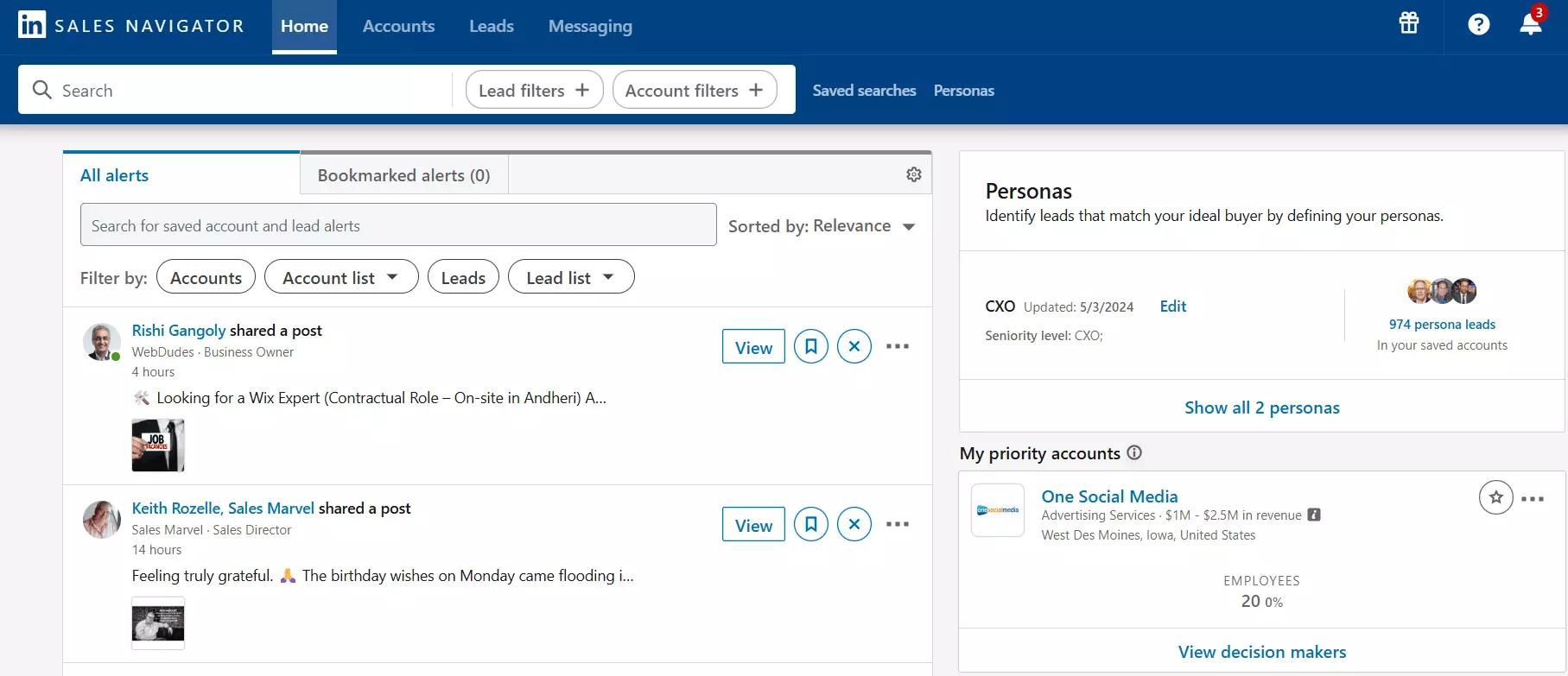
It’s way better than a basic account because it gives you more filters, shows you deeper network levels, and lets you organize prospects into neat lead lists.
I’ve already broken down its use cases,features, and pricing here:
👉 LinkedIn Sales Navigator Pricing Guide: Plans and Best Value
Here’s what you can collect with it:
- Your 1st, 2nd, and even 3rd-degree connections
- LinkedIn users who share a group with you
- The 1st-degree connections of any specific 1st-degree contact in your network
How do you find them?
How to find the right LinkedIn connections with Sales Navigator?
It’s a simple, 3 step process:
- Open Sales Navigator leads search
- Go to Connections filter
- Choose the connection degree
Step 1: Open Sales Navigator leads search
First thing first, go to your Sales Navigator dashboard and click the Lead filters + button to get started.
👉 Click here to go to Sales Navigator lead search
Step 2: Go to Connections filter
Now find Best path in filters in the left side bar. If you don’t see additional filters in the sidebar, click the > icon to expand the filters menu.
Step 3: Choose the connection degree
That’s where you find your connection degrees. In the Connections filter, choose what type of connections you want to see.
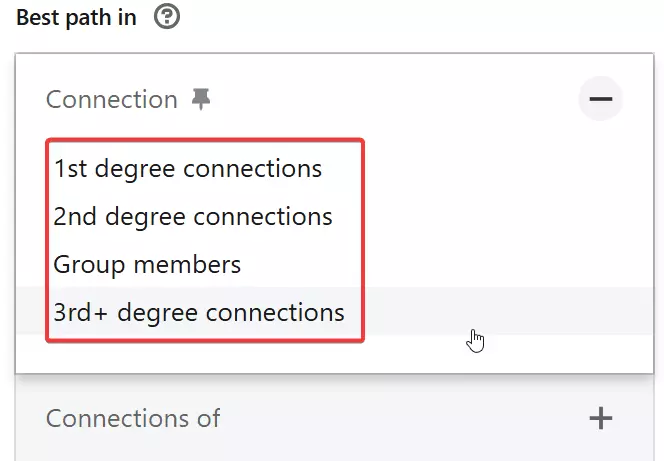
You can choose either or all from 1st degree, 2nd degree, 3rd degree, or even members who share a group with you.
For example, I want to find all my 2nd and 3rd degree connections.
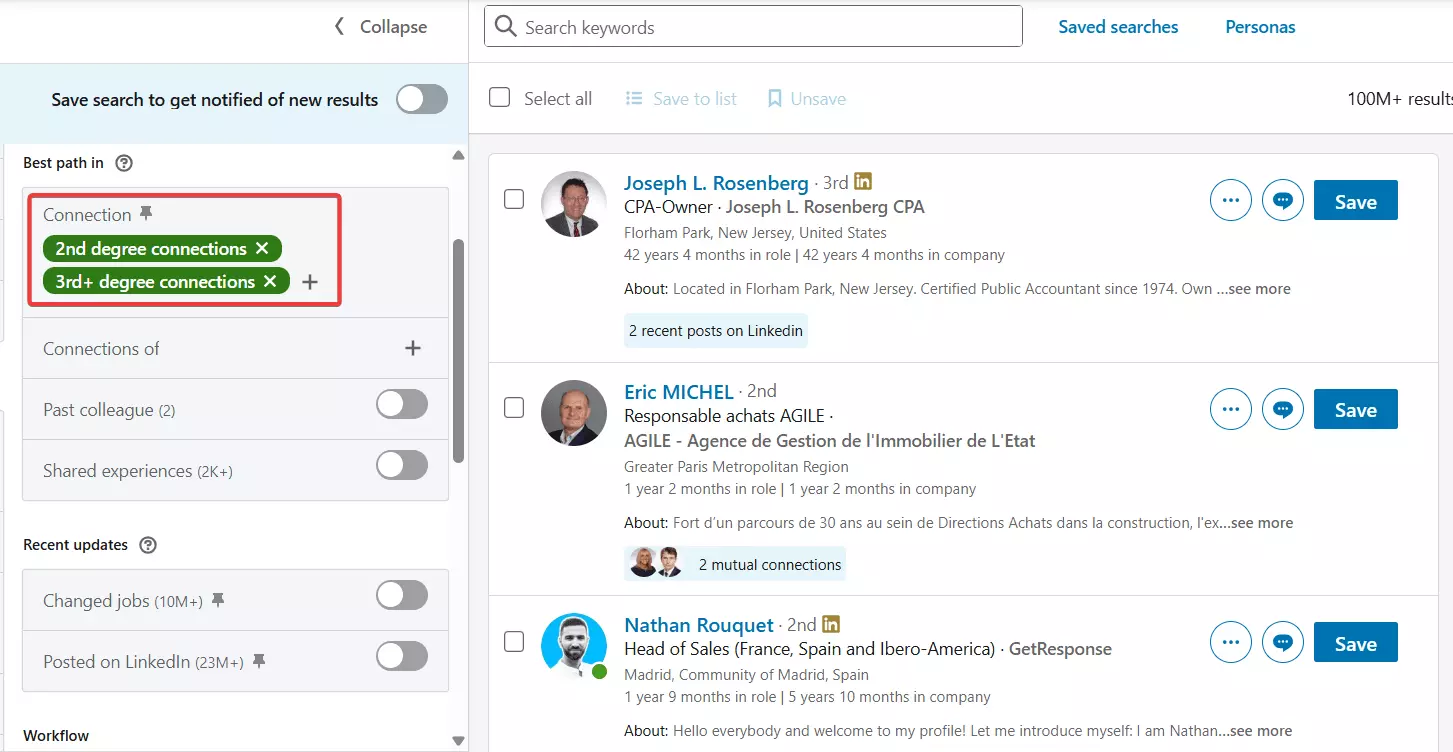
This is way more data than you can get from your basic LinkedIn account.
That’s just the start.
You can narrow it down even more to get the exact decision-makers you want.
Use extra filters like job title, seniority, company size, location, and industry. Or type specific keywords in the search box to match prospects with laser precision.
If you want to get really good at this, check out my complete guide on how to use LinkedIn Sales Navigator.
👉 How to Use LinkedIn Sales Navigator to Generate Lead
But how do I export it to an Excel file?
There’s no download or export button anywhere.
How to export your LinkedIn connections and enrich them with verified emails?
Now that you’ve found your perfect lead list in Sales Navigator, it’s time to collect it.
The best way to do it is… Use Lobstr.io.
What is Lobstr.io?
Our Sales Navigator Leads Scraper takes your leads search and turns it into a clean, ready-to-use dataset.
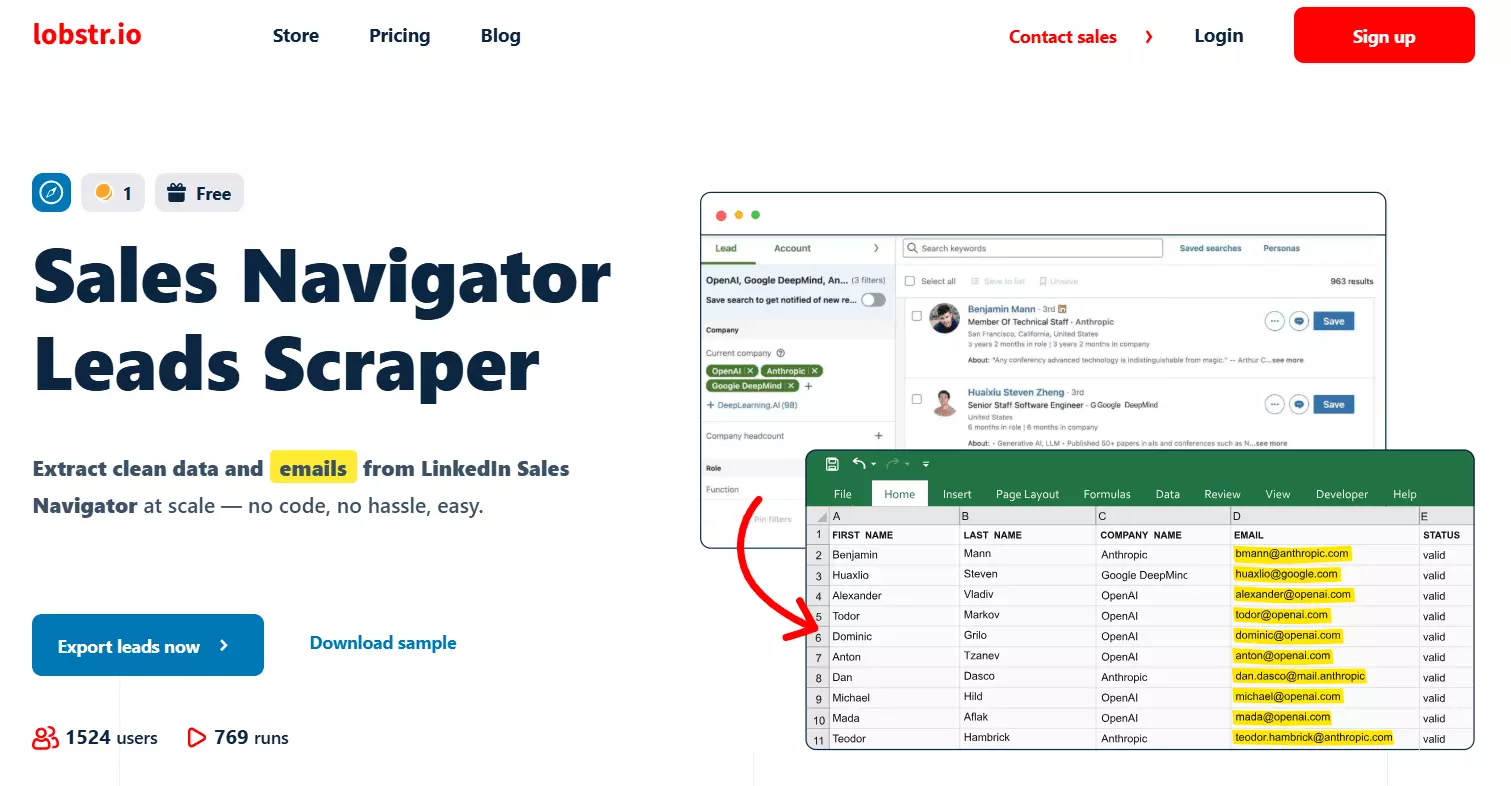
Export all your Sales Navigator leads with verified emails in minutes
- Exports all Sales Navigator lead data in one go
- Enriches with verified professional emails (under 3% bounce rate)
- Exports data in CSV format, Google Sheets, or Amazon S3
- Offers API to work with workflow automation tools like n8n, Make, and Zapier
- Can schedule automatic exports of new connections
Step-by-Step guide
I have already published a full tutorial with every little detail about using Sales Navigator Leads Scraper.
👉 How to scrape Linkedin Sales Navigator
But since we don't need a lot of tweaks, here’s the 3-step process for a quick overview:
- Initiate
- Setup
- Delivery
Step 1: Initiate
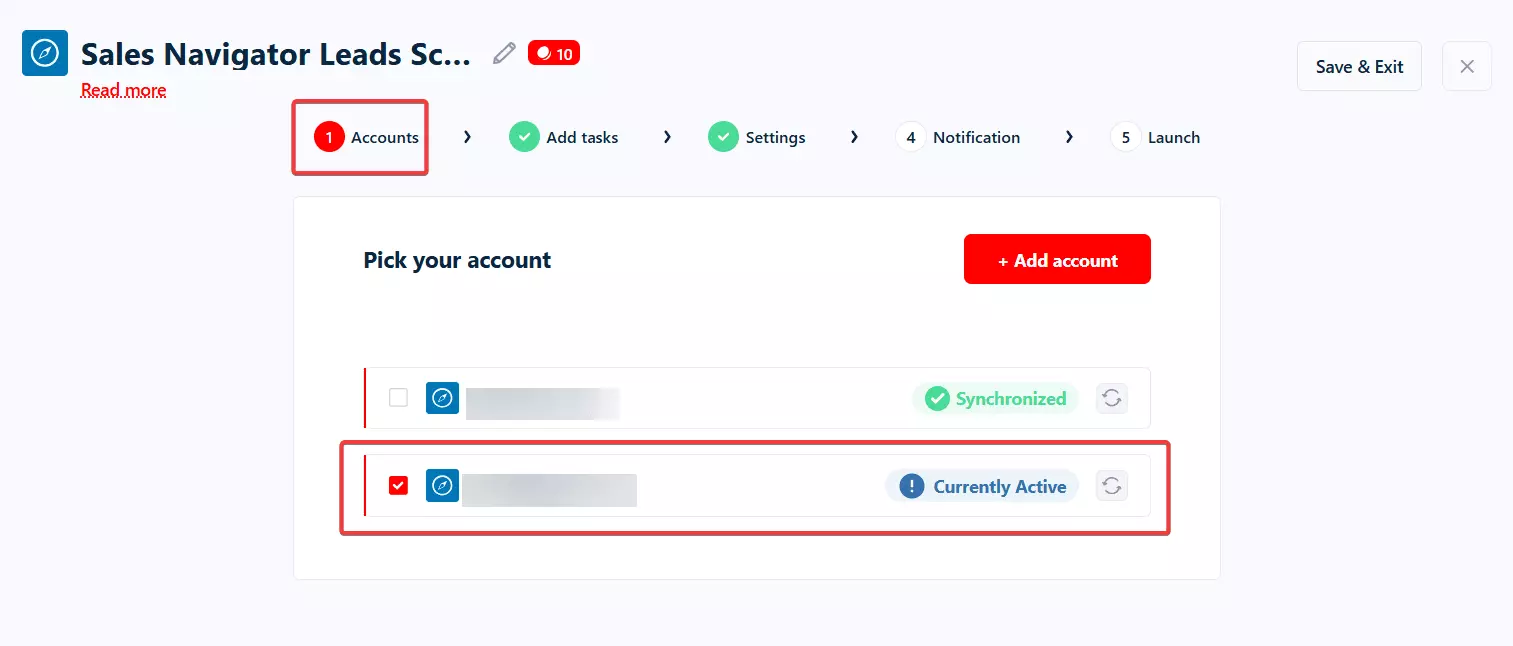
Sync your Sales Navigator account using the Lobstr.io Account Sync Chrome extension.
Then create a new Sales Navigator Leads Scraper (Squid) and select your synced account.
Step 2: Setup
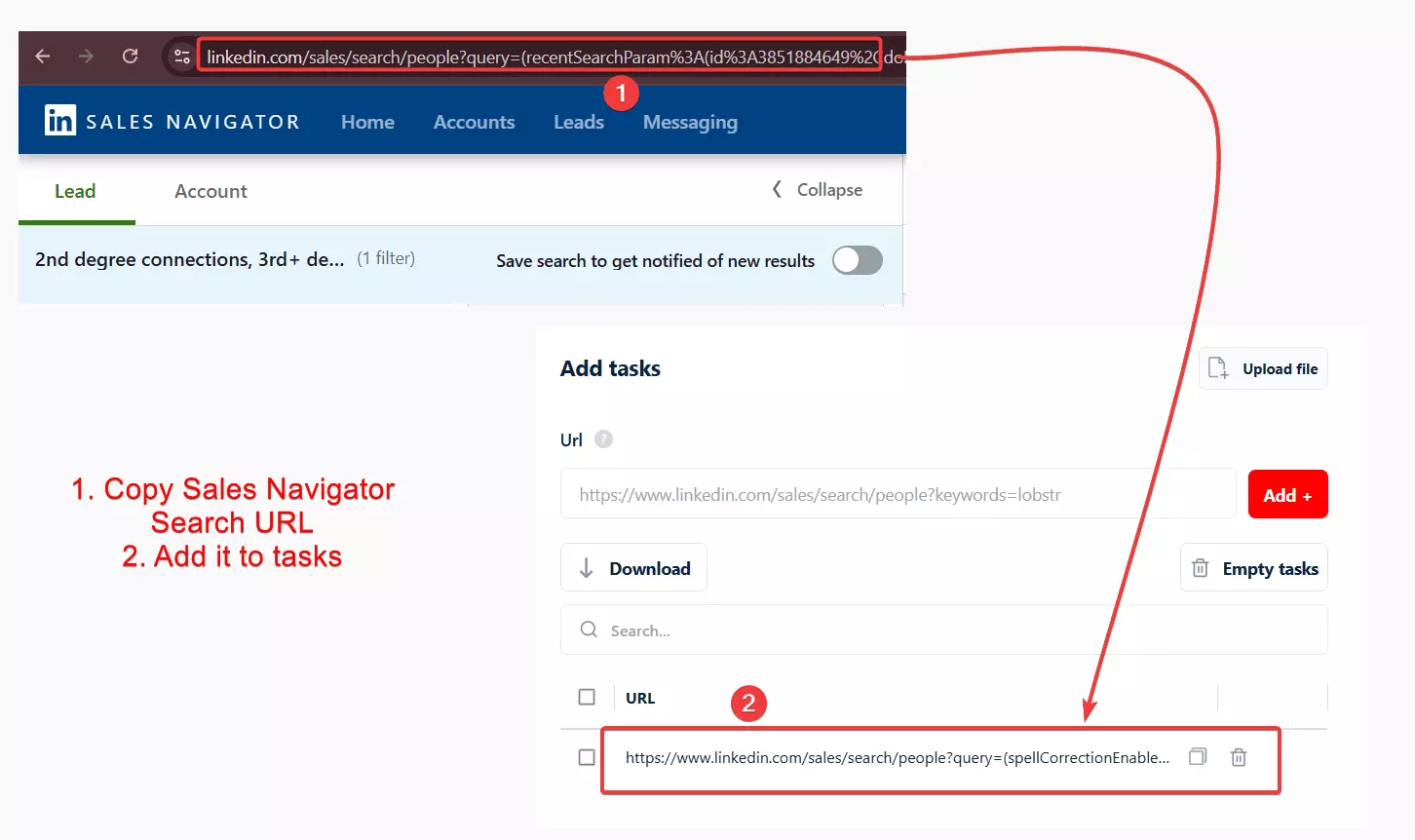
Paste the URL of your Sales Navigator search page into the task.
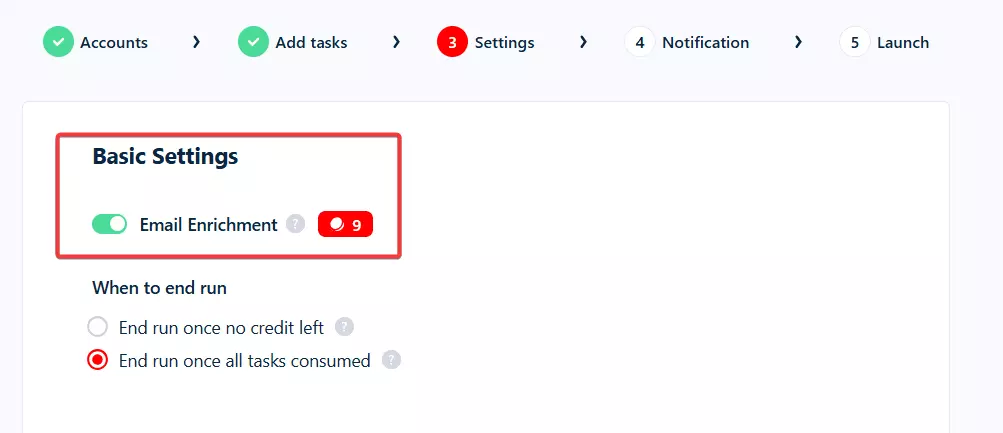
Now in Settings, toggle Email Enrichment ON. This will trigger Lobstr.io’s email discovery system to find valid business email of every LinkedIn profile being collected.
Then in Launch, choose whether you want Manual (instant) or Repeated (scheduled) exports.
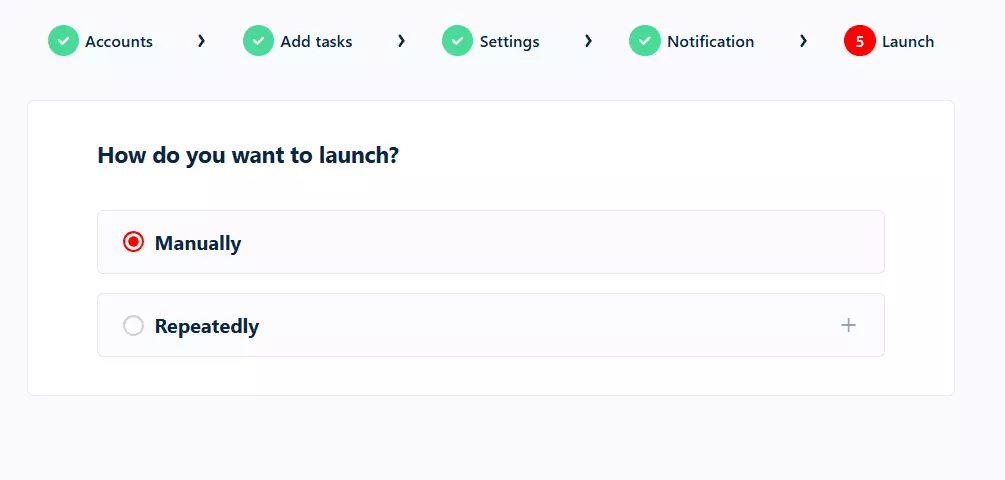
And that’s it.
Now simply click Save & Extract if you want to instantly start collecting data. You’ll get a CSV file once data collection is complete.
Click Save & Exit if you want to configure automated export to Google Sheets or S3.
Step 3: Delivery
In the live console, click the delivery icon and choose where the data should go.
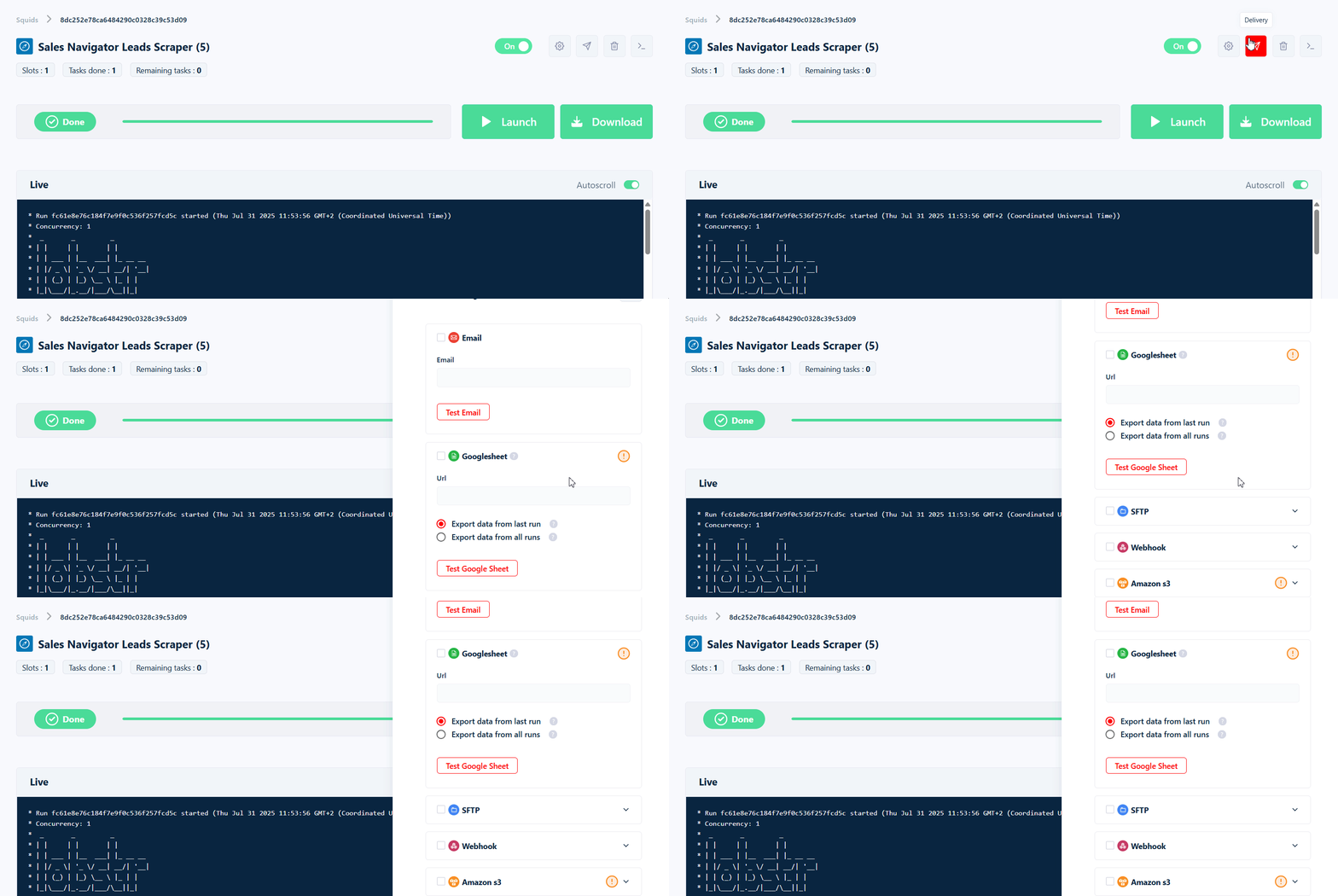
You can connect Google Sheets, Amazon S3, SFTP, or use Webhook in Delivery settings for automatic updates.
That’s it. Just click Launch and Lobstr.io will return the enriched dataset in a few minutes.
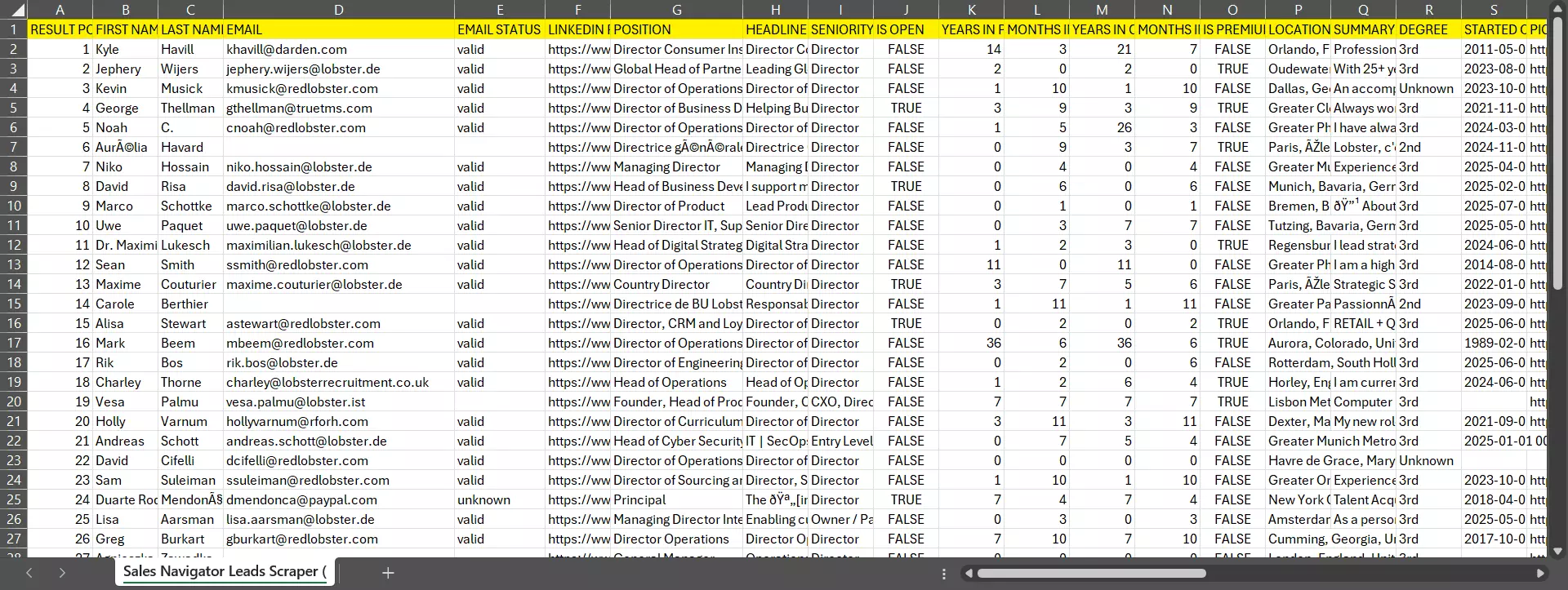
What data do you get?
When you export your leads with the Lobstr.io Sales Navigator Leads Scraper, you don’t just get names and emails.
You get a fully enriched dataset including:
- Name
- Email and Email Status (verified, unverified, etc.)
- LinkedIn Profile URL
- Position and Profile Headline
- Seniority Level
- Is Open Profile (if their profile is publicly open
- Years and Months in Current Position
- Years and Months at Current Company
- Is LinkedIn Premium Subscriber
- Location and Profile Summary
- Connection Degree (1st, 2nd, or 3rd)
- Started On date
- Picture URL
- Is Saved Lead in Sales Navigator
- Number of Current Jobs
You’ll also get rich company-level data:
- Company Name and Description
- Company Website and LinkedIn URL
- Company Type and Industry
- Company Location and Specialties
- Company Revenue Range
- Company Employee Count
- Company Founded Year
- Company Profile Picture
This means every export is a fully detailed snapshot of both the person and the company they work for, perfect for highly targeted outreach and advanced lead segmentation.
But how do I collect LinkedIn contacts data of specific 1st degree connections from my network?
How to export LinkedIn contacts of your 1st-degree connections?
Now that you know how to export your own contacts and build lead lists in Sales Navigator, the next question is:
Can you actually export the contacts of your connections?
Yes, you can, and it’s easier than you think.
The process is almost identical to what we just covered for exporting your own contacts with Sales Navigator.
The only difference is the filter you’ll use:
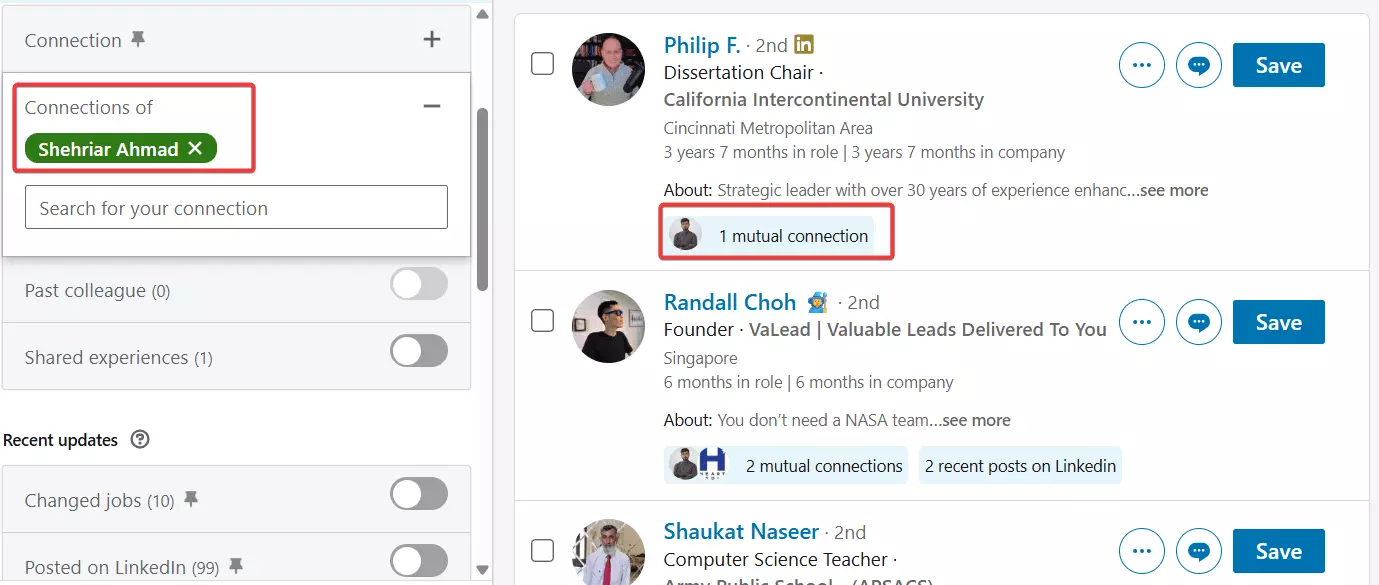
- Instead of the Connections filter, switch to Connections of.
- Type the name of one of your 1st-degree connections into the search box.
Sales Navigator will show you all of that person’s 1st-degree connections.
Once you have the list, you can collect and enrich it using the Lobstr.io Sales Navigator Leads Scraper just like before.
And that’s it.
Before wrapping up, let me answer some FAQs.
FAQs
Can I export contacts by location, industry, or job title?
Yes. Sales Navigator’s advanced filters make it easy to narrow contacts down by these factors before exporting.
Can I transfer contacts from one LinkedIn account to another?
No. LinkedIn doesn’t allow direct contact transfers between accounts.
Can I import contacts into my CRM or tools like HubSpot?
Yes. Most CRMs (including HubSpot) accept CSV imports.
Sales Navigator does offer direct CRM export but you'll need an Advanced Plus plan which costs $1600/year.
Can I export contacts into Gmail?
Yes. Once you have your CSV export, you can import it into Gmail’s contacts list. Google will sync those contacts with your account.
How can I use LinkedIn exports for lead generation?
Exporting your LinkedIn connections gives you a ready-made lead list. You can enrich the data with verified emails, then use it for outreach or CRM nurturing.
You can read my emailing series articles to learn how to create perfect email campaigns, outreach email and follow-up templates, and proven email marketing strategies.
Conclusion
That’s a wrap on how to export LinkedIn contacts from your own network and your 1st-degree connections.
If you want me to elaborate on any specific section of this article, add any missing information, or cover a related topic, do let me know via a LinkedIn DM.
Scrapers in this article
Keep reading
- Shehriar Awan10 Jul 2025AIHow I Built AI Powered LinkedIn X-ray Search Tool with Lobstr.io
- Shehriar Awan25 May 2025LinkedInHow to export followers from linkedin company page
 Sasha Bouloudnine27 Mar 2024Sales NavigatorGet Contact Number from LinkedIn & Sales Nav for Free [2024]
- Shehriar Awan29 Nov 2024LinkedInHow to Buy LinkedIn Accounts Online Safely in 2025
- Shehriar Awan6 Jan 2026Lead GenerationLinkedIn Sales Navigator Pricing Guide [2026]: Plans and Best Value